



If you’re using Keap (formerly Infusionsoft) to send emails, authenticating your domain with SPF, DKIM, and DMARC ensures your messages are trusted by receiving mail servers and protected from spoofing. This guide walks you through the steps to configure these records correctly.
Email authentication helps mailbox providers verify that your messages originate from your domain and haven’t been altered in transit. The three most widely adopted standards are SPF, DKIM, and DMARC. SPF specifies which servers are permitted to send emails for your domain.
DKIM attaches a digital signature to outgoing emails, allowing recipients to confirm authenticity.
Finally, DMARC aligns SPF and DKIM results and gives you reports while instructing receiving servers how to handle unauthenticated messages.
Step 1: SPF Record for Keap
You don’t need to create or modify your SPF record for Keap emails. Keap automatically manages SPF authentication for your domain on their end. This means your outbound messages are already covered under Keap’s SPF setup.
Step 2: Configure Keap DKIM and Return Path Records
You’ll need to publish CNAME records in your DNS to enable DKIM and the Return Path for Keap.
1. Log in to your Keap account.
2. Click your profile icon and go to Settings.


3. Scroll down and select Domains.

4. You’ll see your registered email-sending domain. Click Connect this domain.

5. On the Domain protection page, enter your domain details.
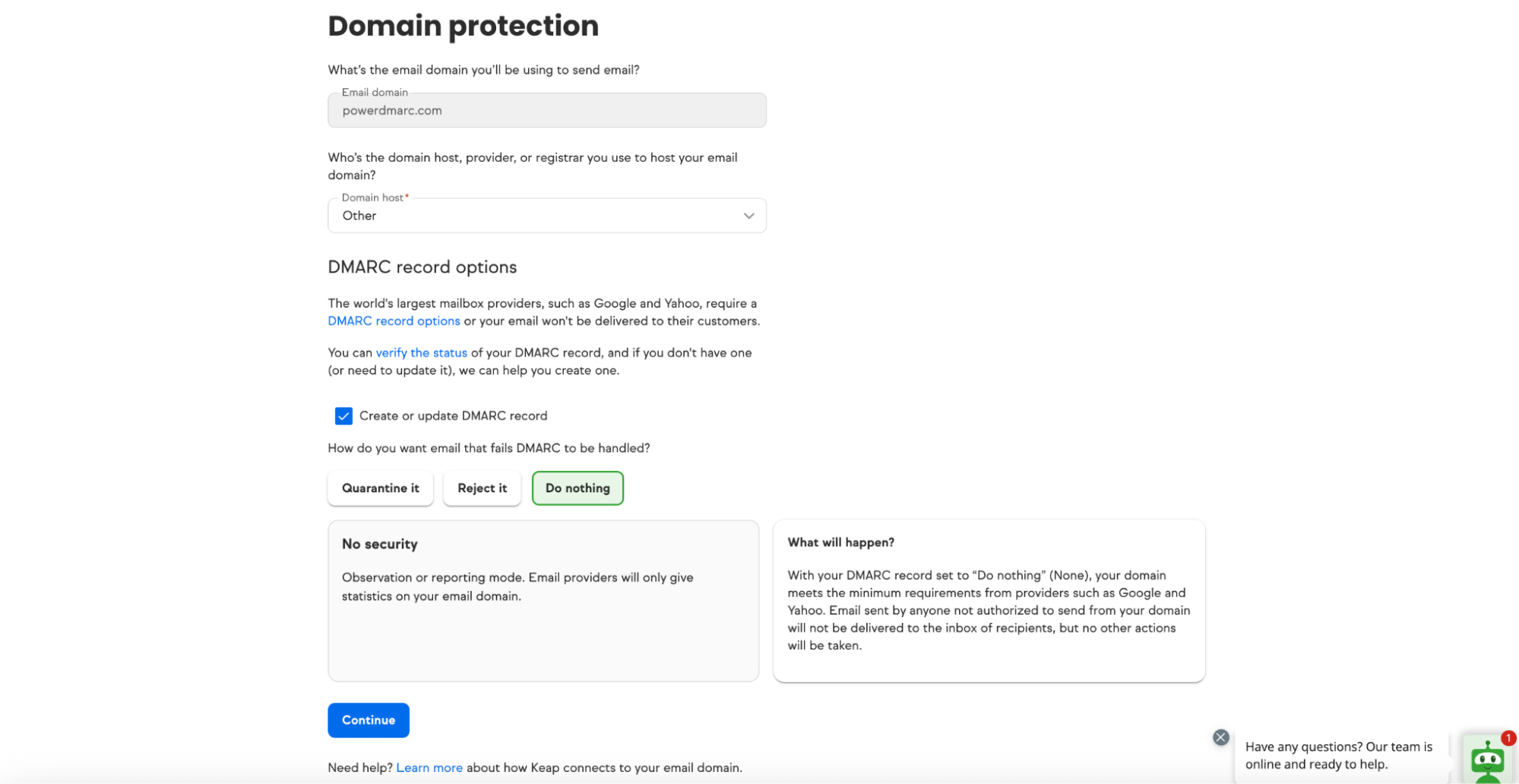

6. Keap will generate three CNAME records — typically one Return Path and two DKIM-related entries, and one TXT record for DMARC.


7. Copy these values and add them to your DNS provider.
Set Up Keap Return Path Record
1. Log in to your DNS host and open your domain’s DNS Management.
2. Select your domain name from the domain list.


3. Add a CNAME record with the values provided in your Keap dashboard.
- Host/Name: Copy from Keap
- Target/Value: Copy from Keap
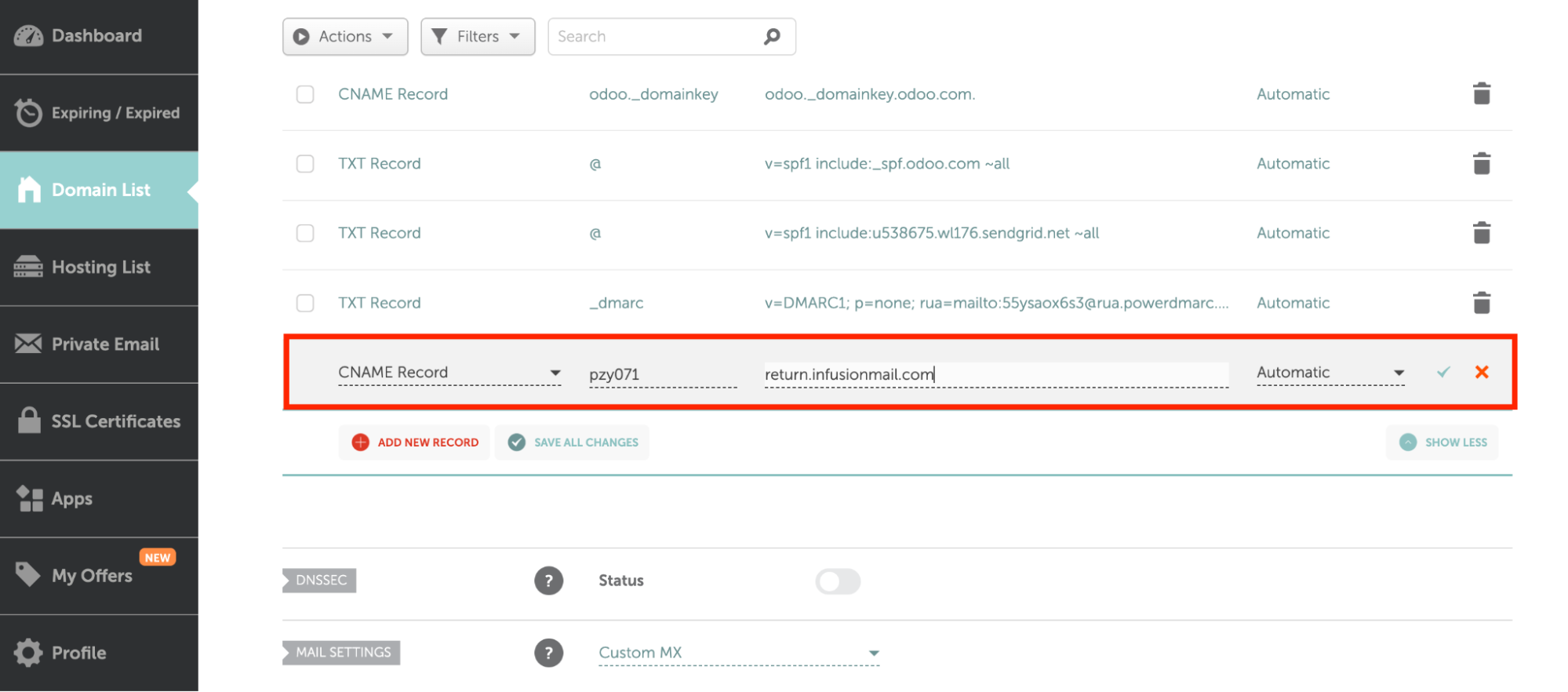

Note: Disable proxying to ensure proper verification.
4. Save the record.
Set Up Keap DKIM Record
1. From your DNS console, add a new CNAME record.
2. Enter the DKIM Hostname and Value exactly as shown in your Keap account.
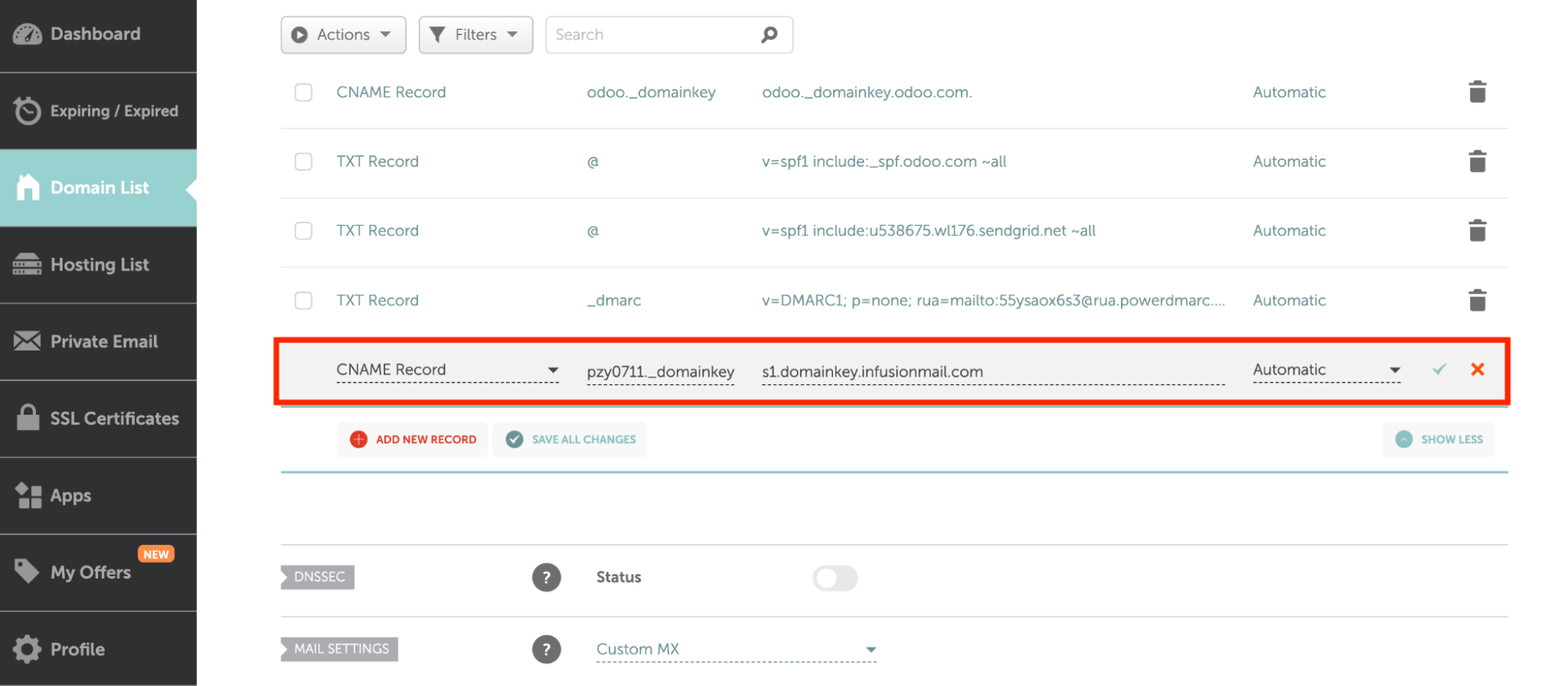

3. Save the record.
Step 3: Configure Keap DMARC Record
DMARC helps you decide what happens when an email from your domain fails authentication and provides reports for visibility.
1. Login to PowerDMARC
2. Navigate to Analysis Tools > PowerToolbox > Generator Tools > DMARC Generator
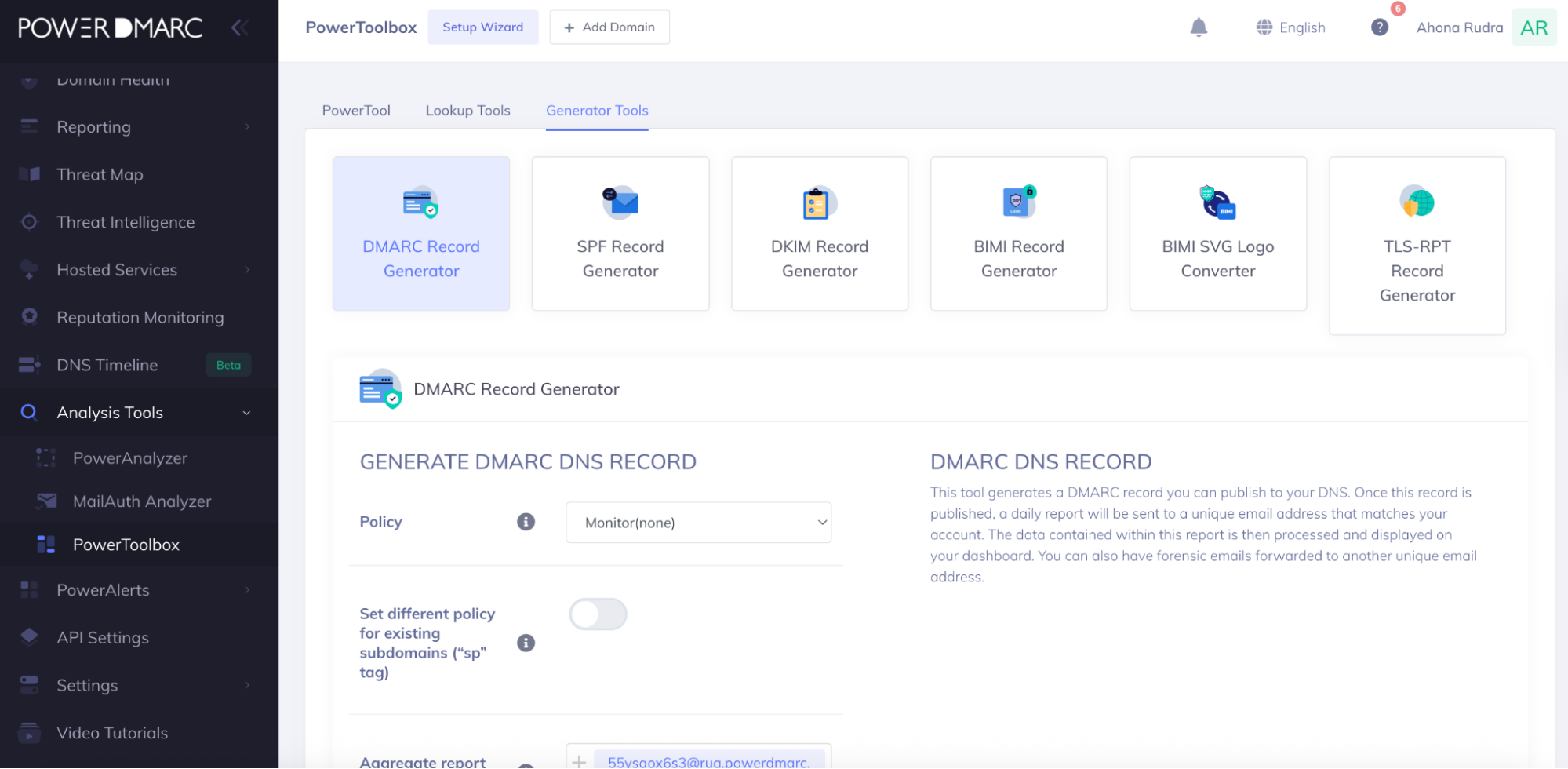

3. In your DNS provider’s console, add a new TXT record with these values:
- Host/Name: _dmarc
Value (initial recommended record):
v=DMARC1; p=none; rua=mailto:dmarc-reports@yourdomain.com; ruf=mailto:dmarc-failures@yourdomain.com; sp=none; aspf=r;
4. Save the record.
5. Start with p=none (monitoring mode). This allows you to collect reports without affecting email delivery.
6. Once you review the reports and confirm that legitimate services are aligned with SPF and DKIM, you can move to stricter policies like quarantine or reject to block spoofing attempts.
Step 4: Verify and Monitor Keap SPF, DKIM, and DMARC Records
- Wait up to 24–48 hours for DNS changes to propagate.
- Use a DMARC record checker or domain analyzer tool to confirm your SPF, DKIM, and DMARC records are correctly published.


- Monitor the reports you receive regularly to ensure no legitimate email sources are blocked.
By properly configuring SPF, DKIM, and DMARC for Keap, you can:
- Protect your domain against phishing and spoofing.
- Improve email deliverability and trust with recipients.
- Gain visibility into who is sending emails using your domain.
For automated monitoring, report visualization, and advanced DMARC policy management, you can simplify this process with PowerDMARC’s DMARC management platform.


- What Is BIMI? Email Trust and Brand Identity - December 26, 2025
- What Is a CAA Record? DNS Security Guide - December 24, 2025
- Is It Safe to Open Spam Emails? Risks & Safety Tips - December 16, 2025