


Key Takeaways
- Proper domain authentication with SPF, DKIM, and DMARC ensures emails reach the inbox instead of spam.
- Mailgun provides the necessary DNS records to connect and verify your sending domain.
- DNS updates involve adding TXT and CNAME records for authentication and tracking.
- Verification in Mailgun confirms that all records are correctly configured and active.
- Strengthening DMARC policies over time enhances domain security and email trustworthiness.
If you’ve ever wondered why your important emails end up in spam, it’s often because your domain isn’t properly authenticated. Setting up SPF, DKIM, and DMARC records helps email providers like Gmail and Outlook recognize your messages as legitimate. This quick guide walks you through authenticating your domain with Mailgun so your emails land where they belong: in the inbox.
Let’s dive in.
Mailgun Email Authentication Step-by-Step

Step 1: Verify your Domain on Mailgun
First things first, let’s get your domain added to your Mailgun account.
1. Log in to Mailgun.


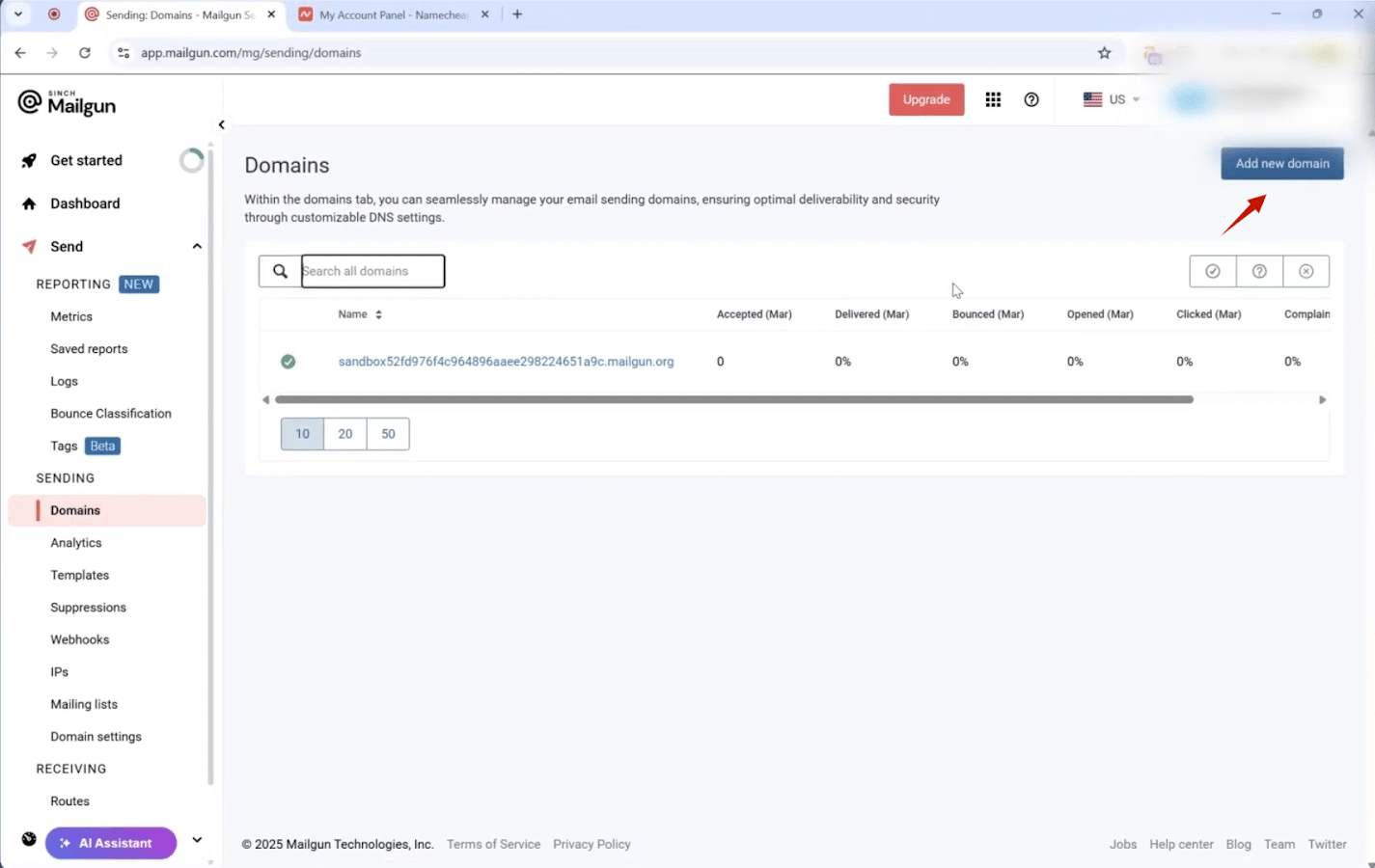
2. On the left-hand menu, click on Send, then find Domains under the “Sending” section.


3. Hit the “Add New Domain” button.

4. Type in your domain name. Mailgun suggests using a subdomain, but using your main one is totally fine for this guide.
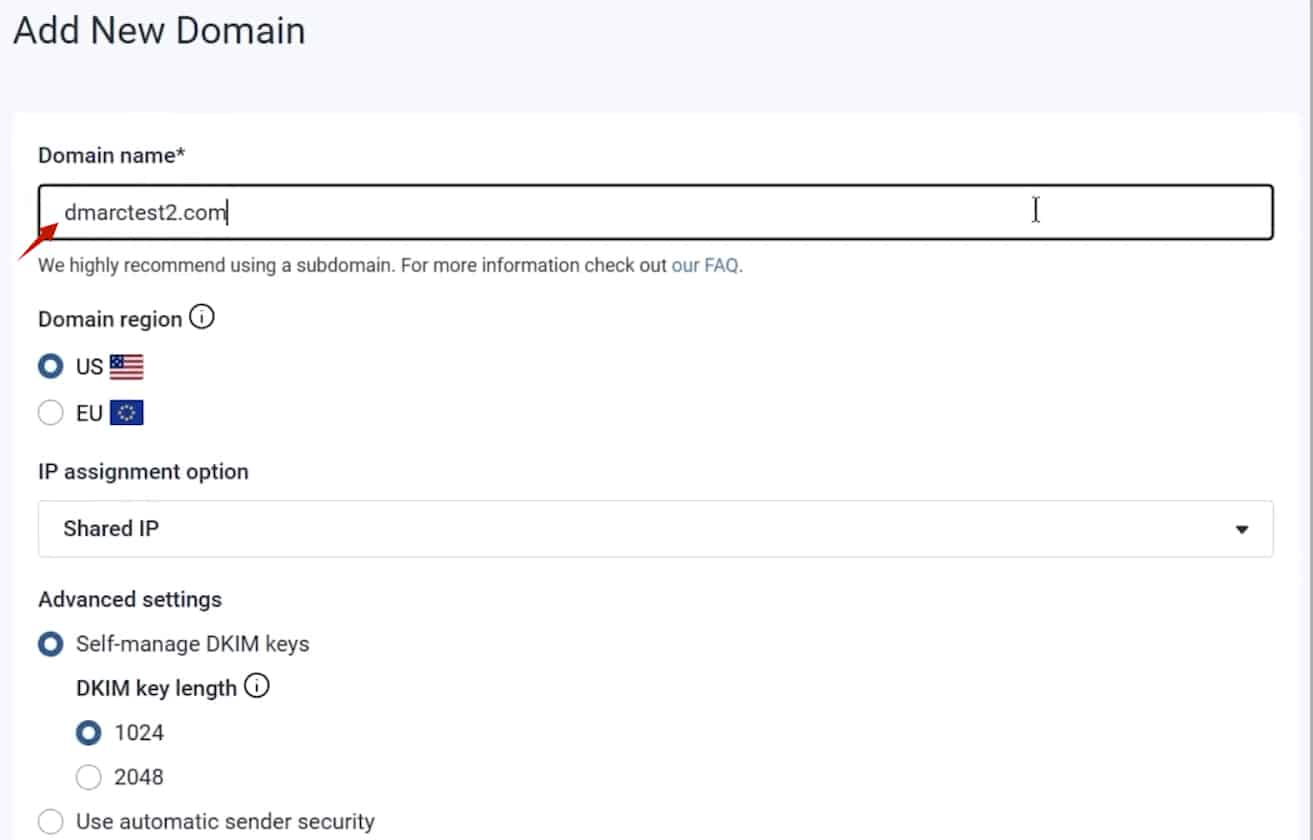

5. Click “Add Domain.” You’ll land on a page with a bunch of text records. Don’t close this tab! We’ll need it in a minute.


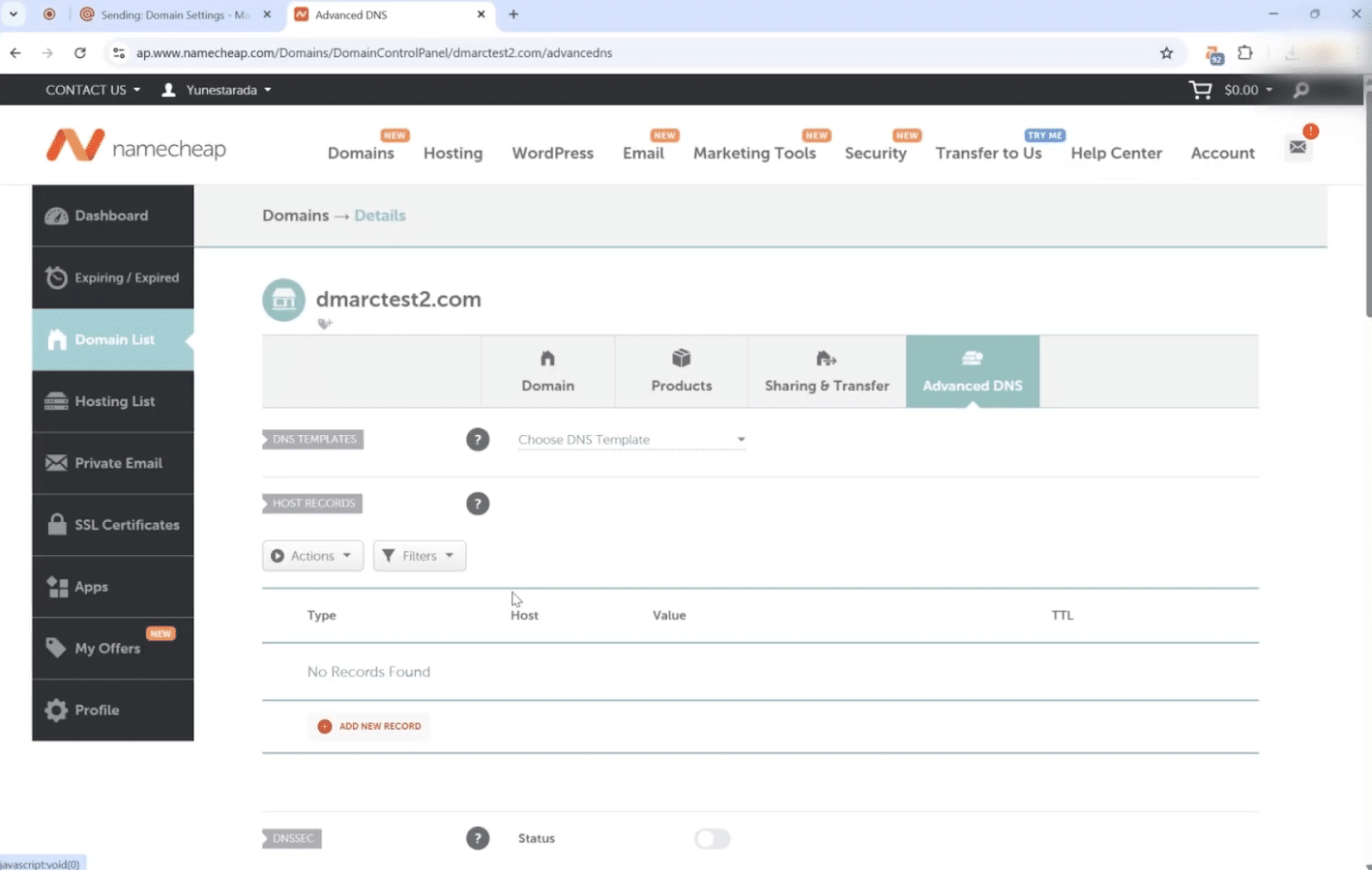
Now, you’ll need to open a new tab and log in to your DNS hosting provider’s management console, like Namecheap, GoDaddy, Cloudflare, etc.
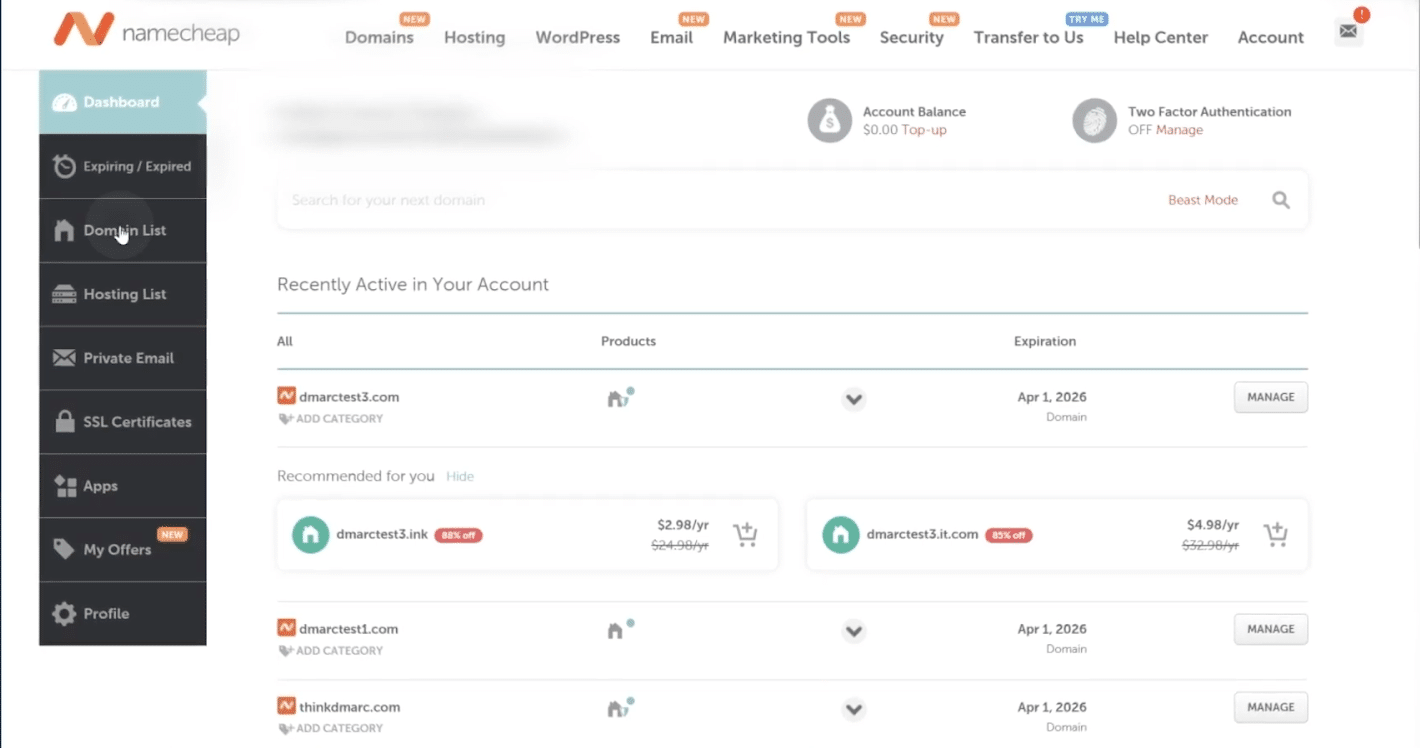

Find the page where you can edit your DNS settings. It’s often called “Advanced DNS” or something similar. This is where we’ll add the records from Mailgun.

Step 2: Set Up Mailgun DKIM Record
This part might look a little technical, but it’s really just a copy-and-paste job. We’re going to create a few new records in your DNS settings using the info from that Mailgun tab.
- Create a new TXT record.
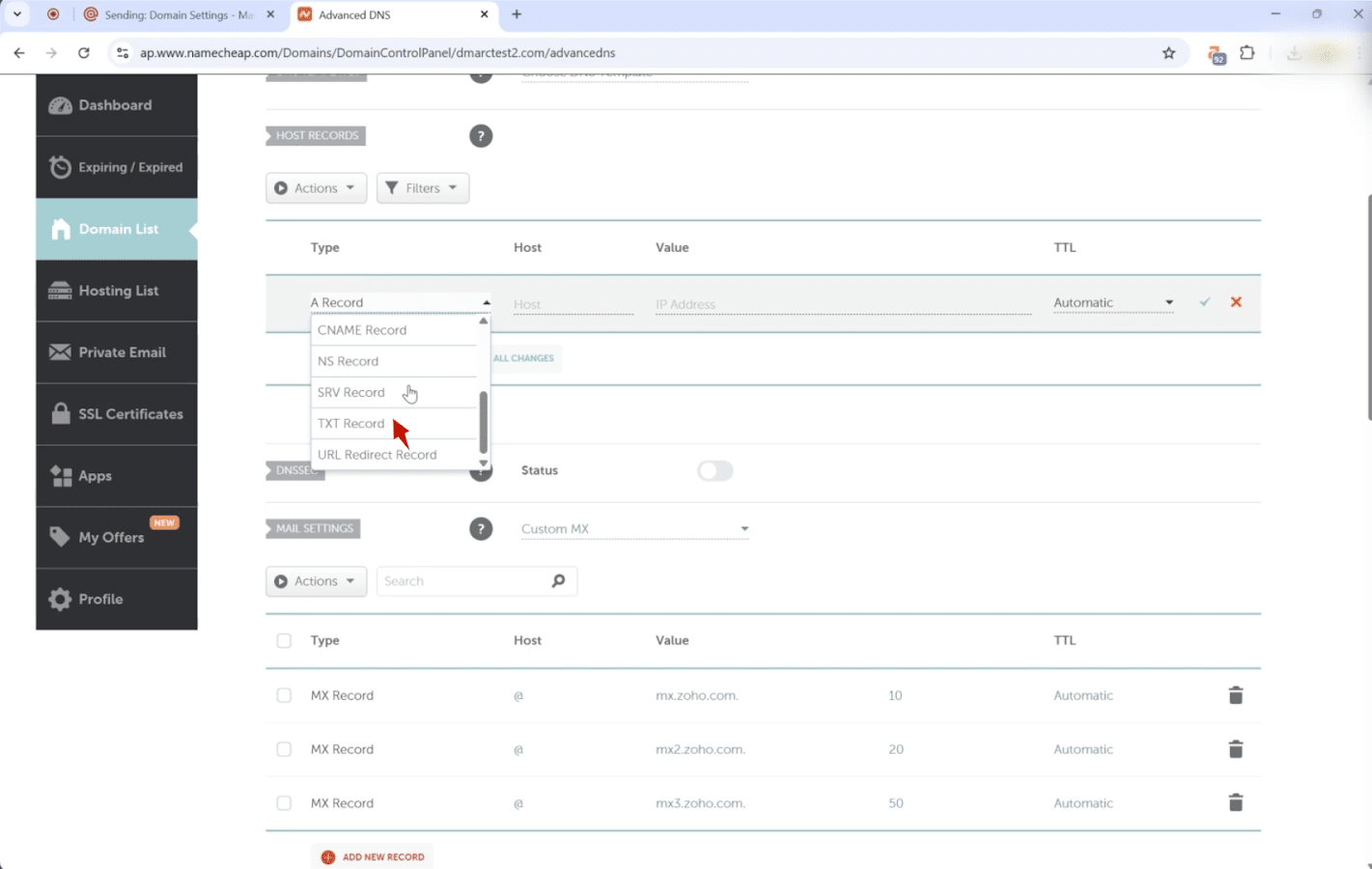

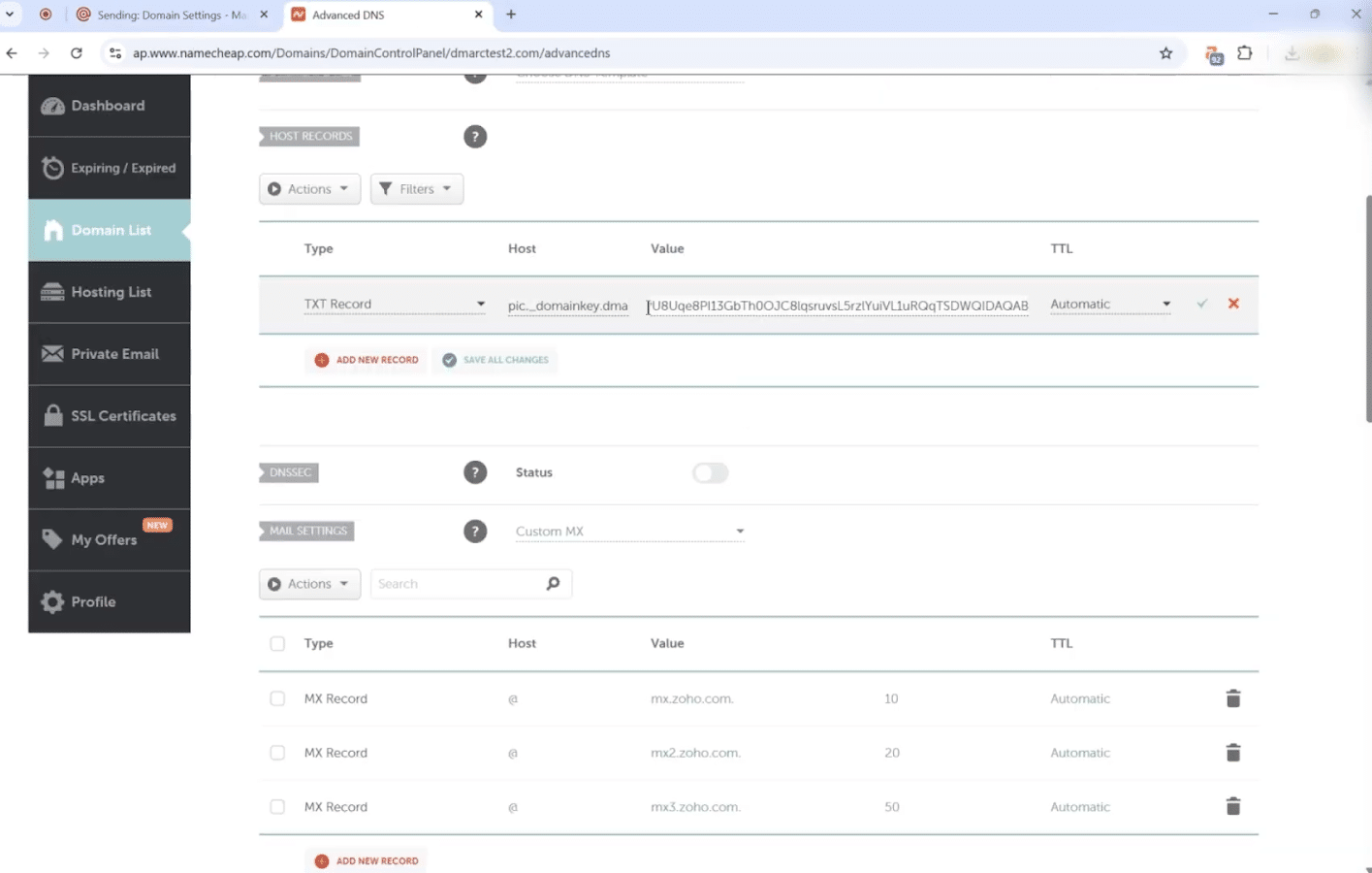
- Copy the hostname from Mailgun to then paste it into the “Host” field in your DNS settings. Do the same for the value: copy from Mailgun to then paste into the “Value” field.

- Paste into the respective fields.

Step 3: Set Up Mailgun SPF Record
- Create another TXT record.
- For the “Host” field, just put @ (this usually means your main domain).
- Copy the SPF value from Mailgun and paste it in.
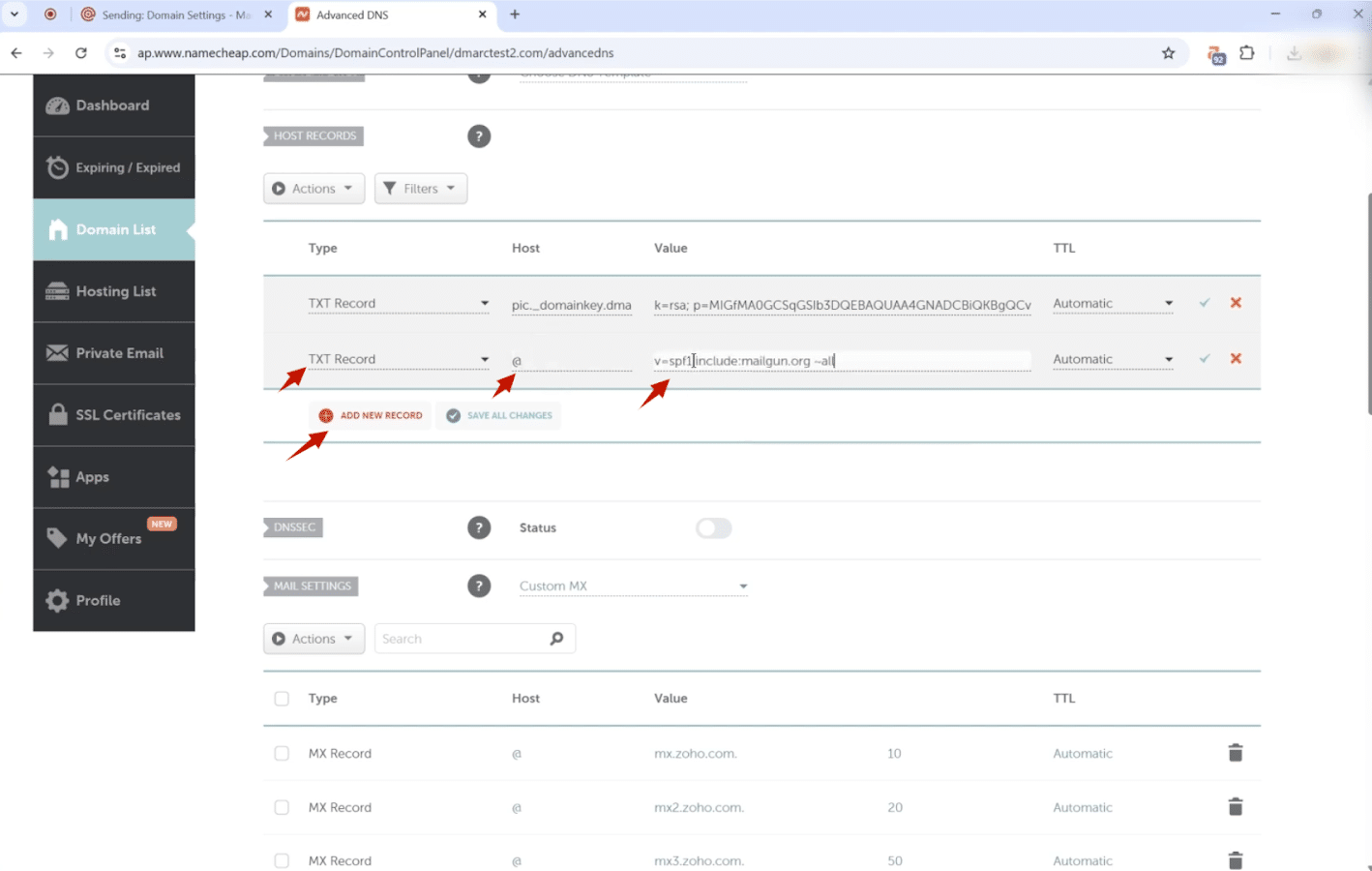
- Heads up! If you already have an SPF record, don’t create a new one! Just edit your existing one and add Mailgun’s include statement (it looks like include:mailgun.org) to it.
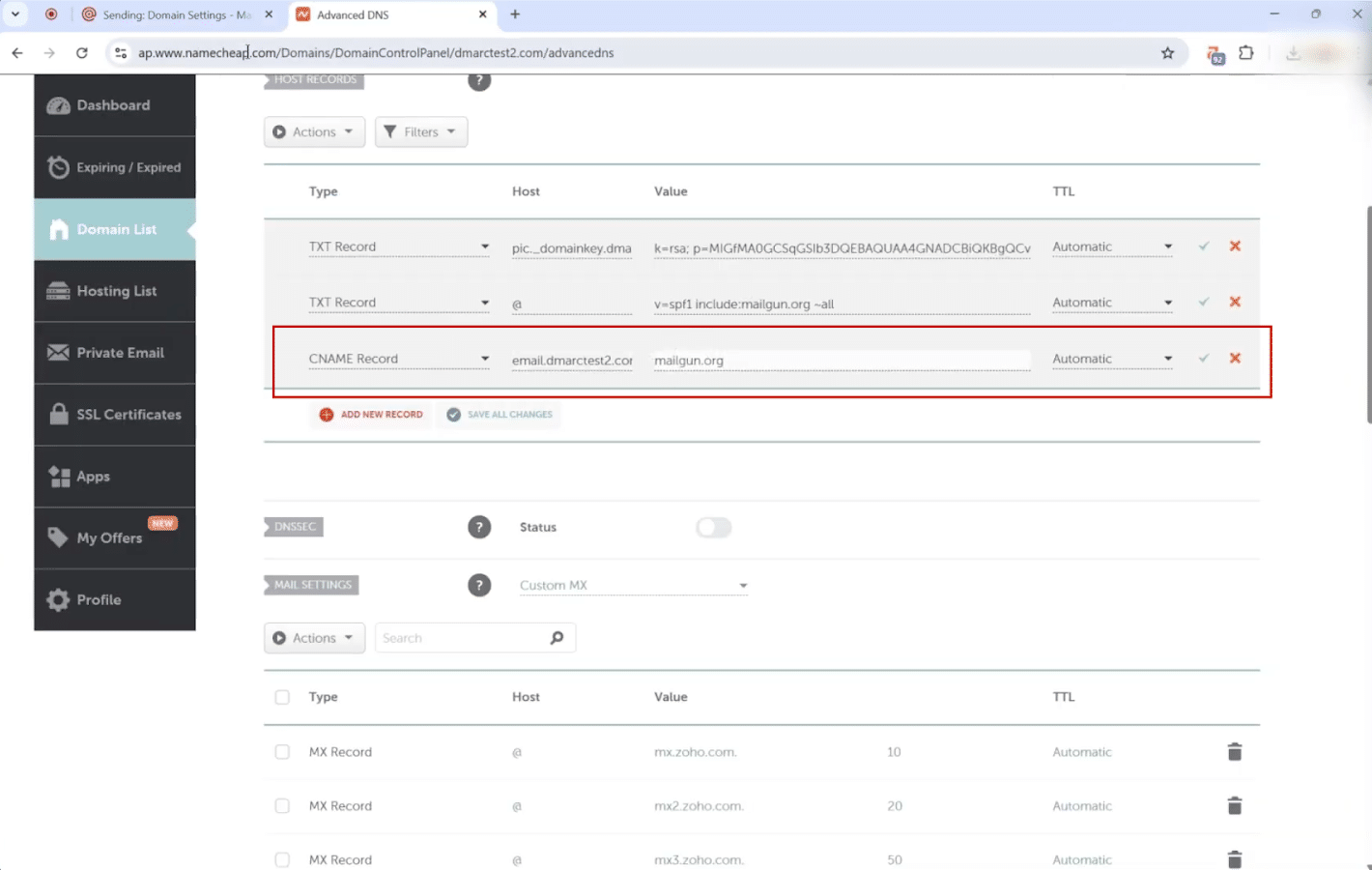
Step 4: Set Up Mailgun CNAME Record (for tracking)
- Create a CNAME record this time. This lets you see who opens and clicks your emails.

- You know the drill: copy the host and value from Mailgun and paste them into the new CNAME record.
Step 5: Implement Mailgun DMARC Record
- If you don’t have DMARC already implemented, you need to create one more TXT record. If you have one already, skip this step since you can only have 1 DMARC record per domain.
- The “Host” is usually _dmarc.
- While Mailgun provides a DMARC value, it comes with a p=none policy that provides monitoring only and no protection, as shown below:
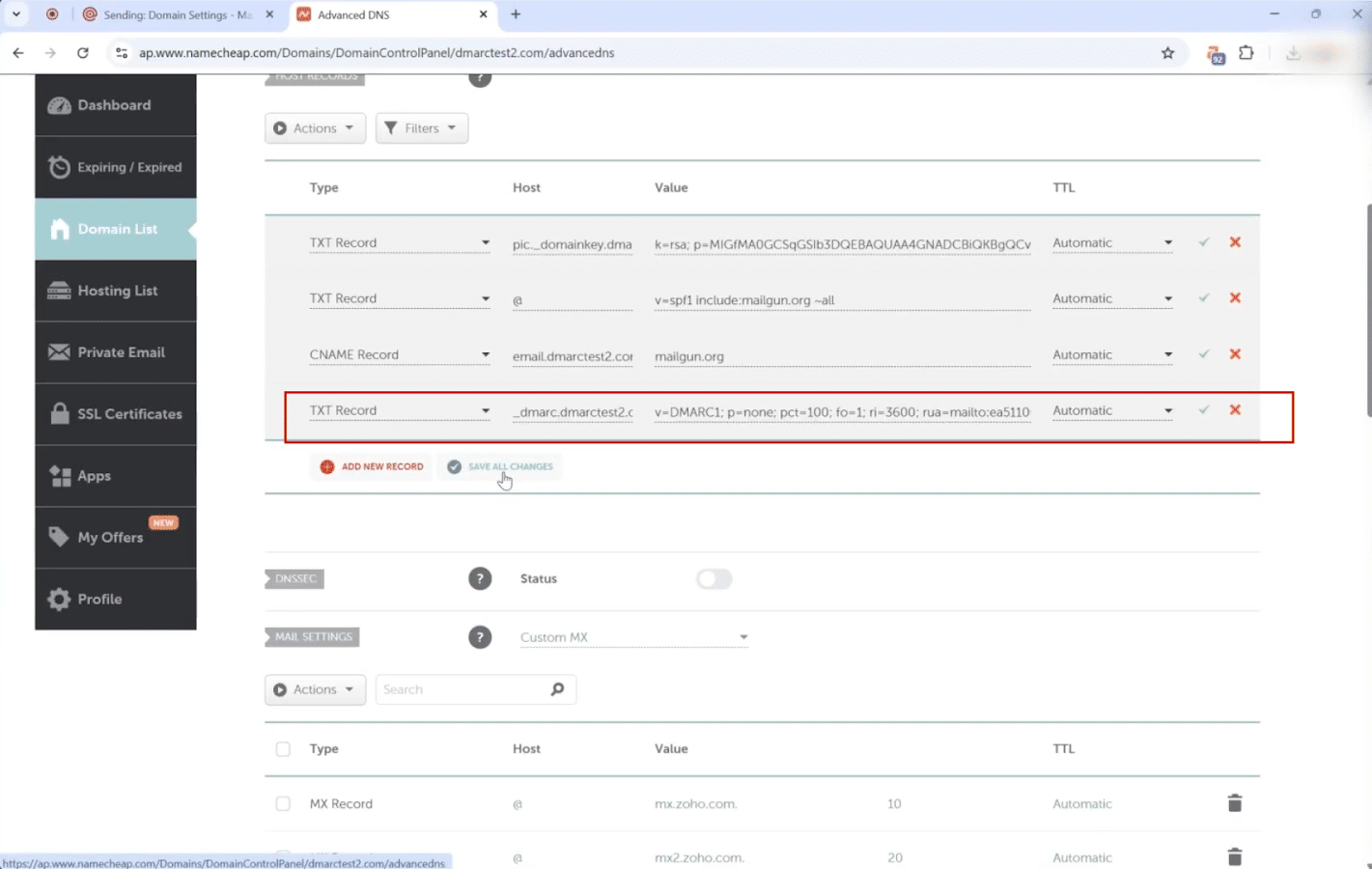
p=none is like having a security guard who only takes notes but doesn’t stop intruders. Down the road, you must strengthen your security posture by changing it to p=quarantine (sends fakes to spam) and eventually p=reject (blocks them completely).
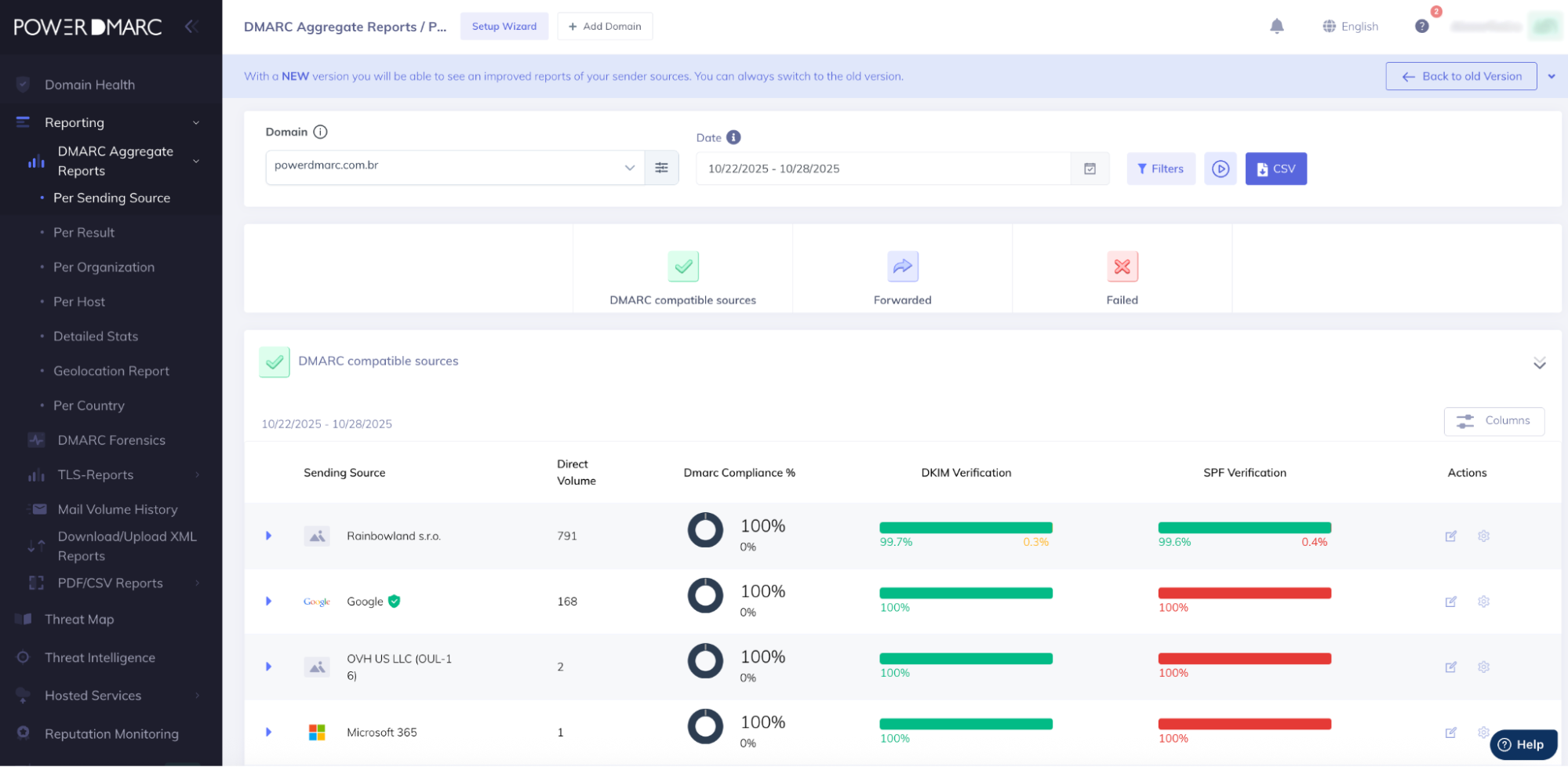
With DMARC, monitoring is crucial. Mailgun doesn’t offer a reporting interface to help you monitor your DMARC reports effortlessly. Our DMARC report analyzer tool helps do just that. By adding RUA and RUF tags that point to PowerDMARC, you detect failed delivery attempts, authentication issues, and misaligned sources faster, so you can send your campaigns with confidence!

Step 7: Verify and Monitor Mailgun SPF, DKIM, and DMARC Records
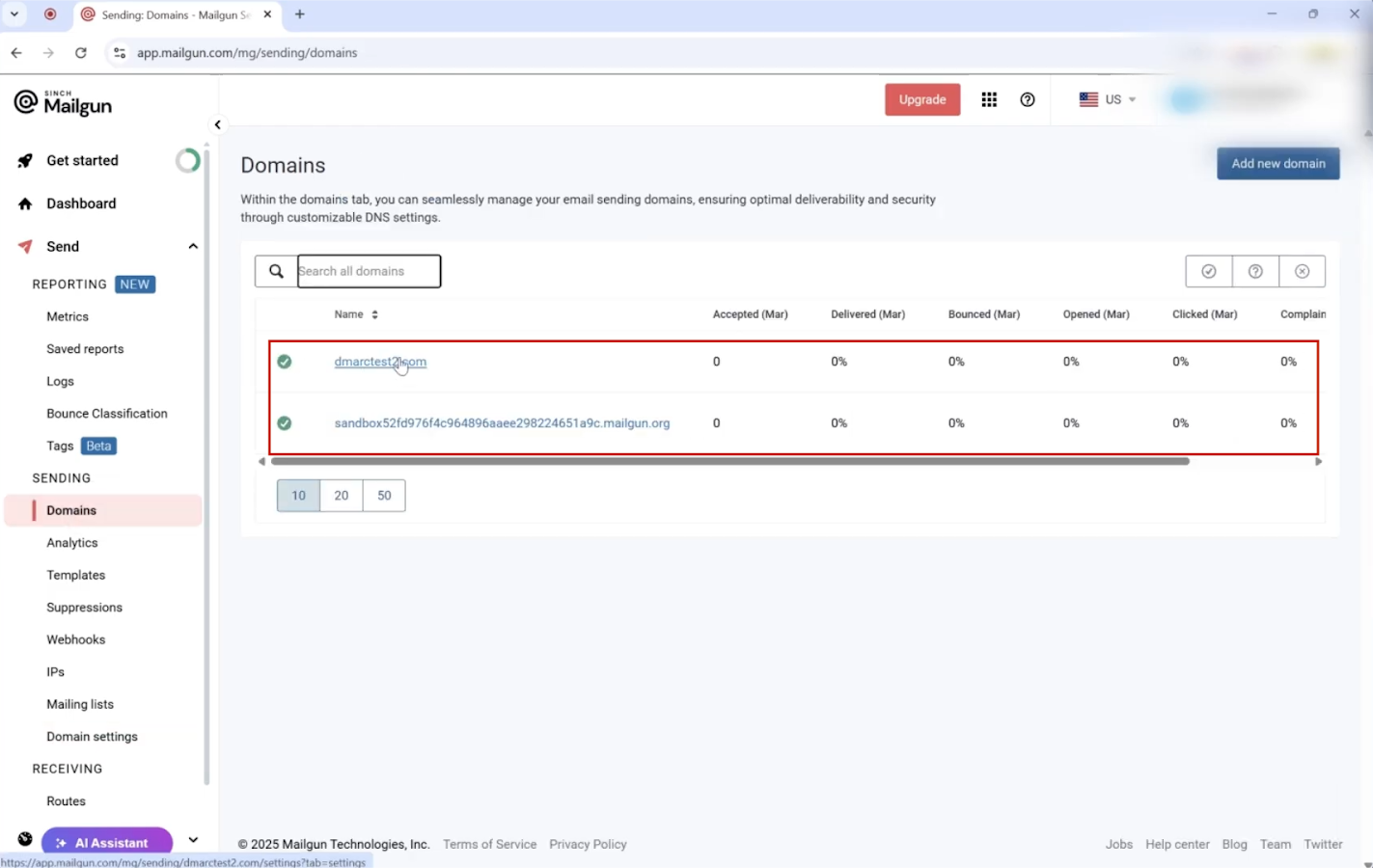
Hop back over to that Mailgun tab you kept open.
1. Scroll to the bottom and click the “Verify DNS Settings” button.

2. Now, we play the waiting game. It can take the internet a little while to notice your changes; sometimes just a few minutes, sometimes a few hours.
3. You might need to come back and click the verify button again. You’ll know it’s worked when you see green checkmarks next to all the records. Mailgun will also send you a confirmation email.
Step 8: Check Your Work & Level Up DMARC
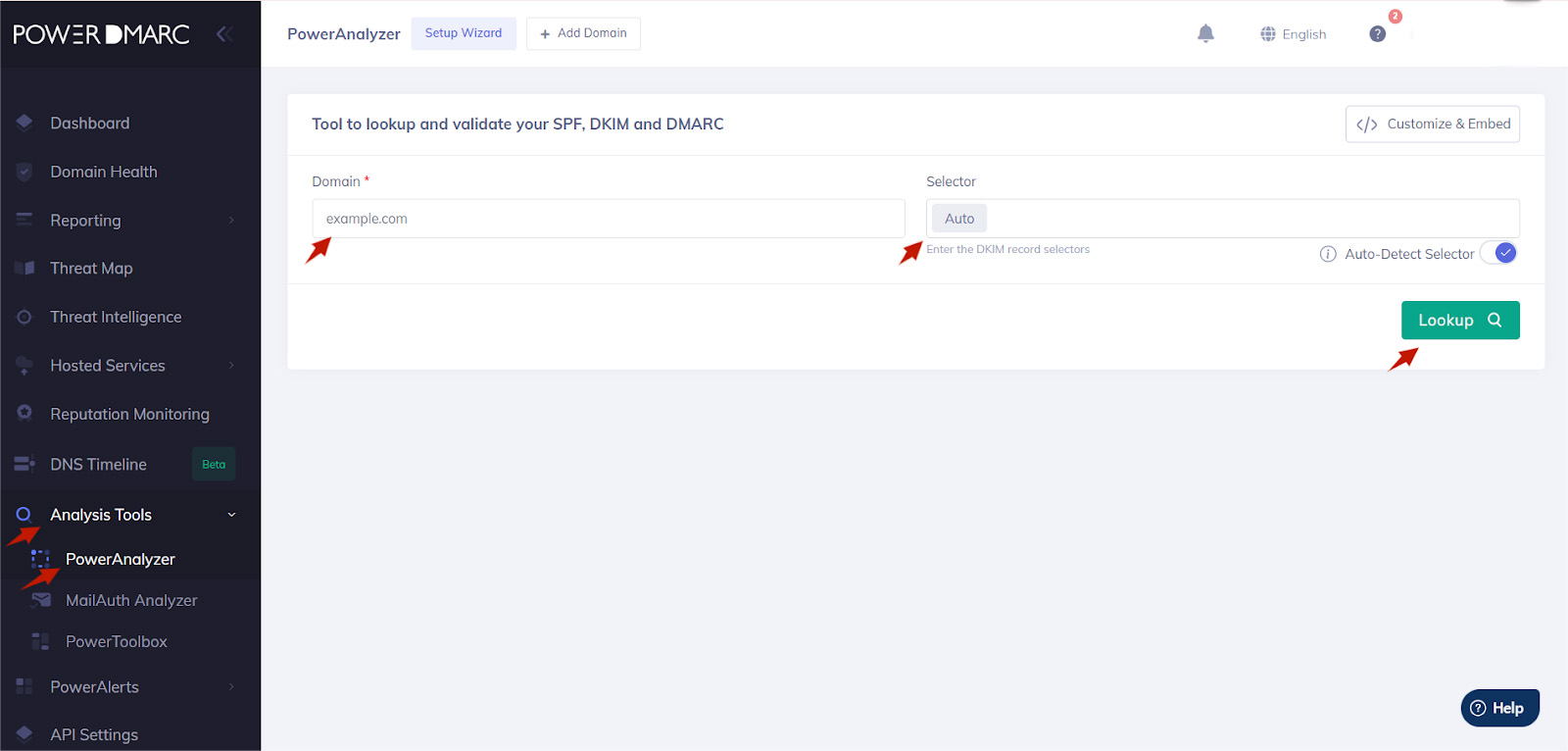
To be extra sure everything is perfect, you can use PowerDMARC’s Domain Analyzer.
1. First, create a PowerDMARC account to get started.


2. Navigate to the Analysis Tools > PowerAnalyzer on the menu on the left side. Then, just pop your domain name in, and it’ll give you a health report. It should show that your SPF, DKIM, and DMARC are set up correctly.

And that’s it! You’ve successfully authenticated your domain. You can now start delivering with confidence, knowing your emails have an enhanced chance of reaching inboxes.
By properly configuring SPF, DKIM, and DMARC for Mailgun, you can:
- Boost your email deliverability and ensure your messages reach the inbox.
- Protect your brand’s reputation against phishing and domain spoofing.
- Build essential trust with both your recipients and major email providers.
For automated monitoring, simplified reporting, and advanced DMARC policy enforcement, you can manage the entire process with PowerDMARC. Schedule a demo for our DMARC management platform today to see it in action!


- Stop Spam Emails: Protect Your Sender Reputation - November 29, 2025
- ActiveCampaign DKIM, DMARC, and SPF Setup Guide - November 25, 2025
- Constant Contact DKIM and DMARC Setup Guide - November 25, 2025