


Key Takeaways
- SPF on one.com requires adding a TXT record containing v=spf1 include:_custspf.one.com ~all, or merging it into an existing SPF record if DNS is hosted externally.
- DKIM is automatically enabled when using one.com name servers, but requires adding four CNAME records from support if DNS is hosted elsewhere.
- DMARC is set up by creating a TXT record named _dmarc with a generated DMARC policy, starting with p=none for monitoring.
- All DNS changes require propagation time before becoming active (90 minutes for SPF, up to 240 minutes for DKIM).
- After setup, validating SPF, DKIM, and DMARC with PowerDMARC ensures correct configuration and reliable email authentication.
Securing your domain on one.com goes beyond sending emails; it’s about proving they’re really from you. SPF, DKIM, and DMARC work together to authenticate your messages, block spoofing attempts, and boost inbox placement.
Whether your DNS is hosted at one.com or externally, this guide walks you through every step to configure SPF, DKIM, and DMARC correctly without any guesswork.
Step-by-Step One.com SPF Setup Guide
One.com recommends the following steps for SPF configuration:
1. Log in to the one.com Control Panel.
2. On the home dashboard, find the tile Advanced settings and click DNS settings.
3. Go to DNS records.
4. Under Create new record, click TXT.
In the Value field, paste the SPF string below exactly as it is:
v=spf1 include:_custspf.one.com ~all
5. Click Create record to save.
6. Wait up to 90 minutes for the DNS change to become active.


Source: one.com support
If your DNS is not hosted at one.com you can still authorize one.com to send emails for your domain. You just need to add the correct SPF record at your external DNS provider.
If you already have an SPF record, merge instead of replacing it (only one SPF record is allowed per domain).
Example:
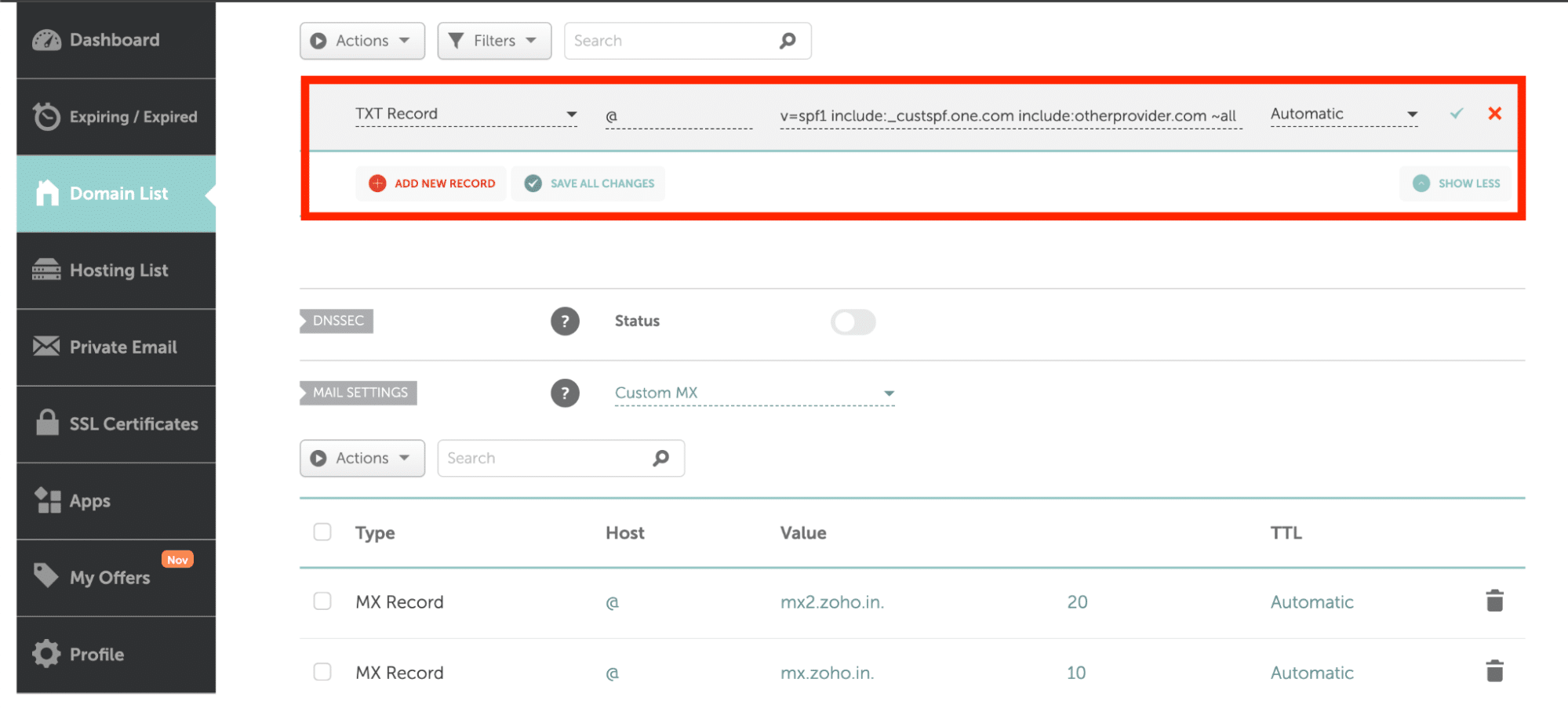

v=spf1 include:_custspf.one.com include:otherprovider.com ~all
How to Set Up DKIM on One.com
One.com recommends the following steps for DKIM configuration:
If you are using one.com name servers
Good news: you don’t need to configure DKIM manually.
DKIM is enabled automatically on your domain. All outgoing emails are sent with a DKIM signature, and incoming emails are checked for DKIM validation to protect you from spoofing and phishing.
If you’re NOT using one.com name servers but still using one.com mail servers
You can still enable DKIM manually by following the steps below:
- Contact one.com support and request the 4 DKIM CNAME record values for your domain.
- At your external DNS provider, open DNS settings.
- Create 4 new CNAME records using the exact values provided by support.
- Allow up to 240 minutes for the DKIM records to propagate globally.
Steps to Enable One.com DMARC Record
Finally, it’s time to configure your Postmark DMARC record.
1. Use our DMARC generator tool to create a new DMARC record. You should start with a p=none policy if you are just starting out. This will ensure deliverability while you monitor your reports. However, remember to upgrade to p=quarantine/reject once you are confident with your setup.


2. In your DNS provider, create a new TXT record.
3. For the Host or Name of the record, enter _dmarc
4. For the Value, paste your DMARC record, policy, and reporting address
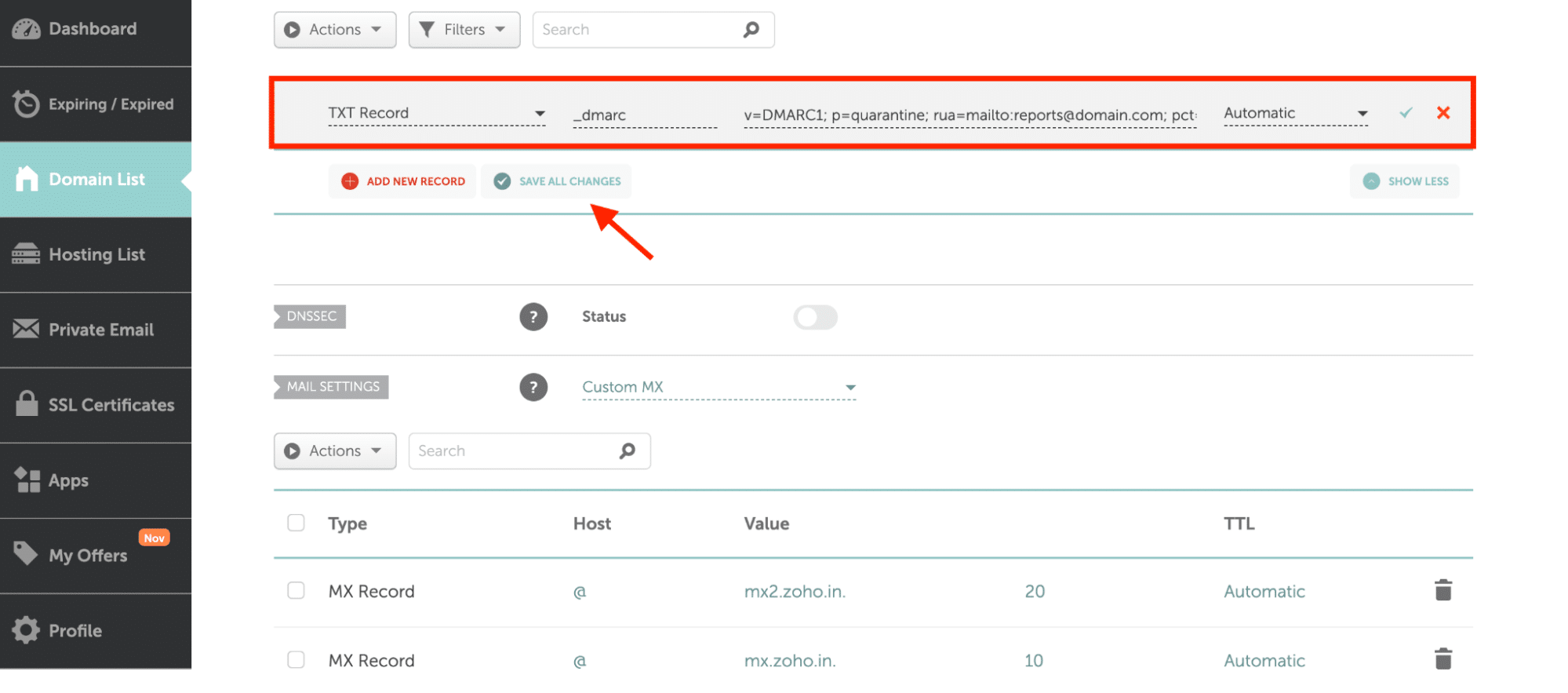

5. Save the TXT record.
Step 4: Verify Your Setup and Monitor with PowerDMARC
For your peace of mind, after DNS propagation, use PowerDMARC’s SPF, DKIM, and DMARC checker tools for instant and accurate validation.
1. First, sign up with PowerDMARC.

2. On the sidebar on the left, navigate to Domain Health Checker
3. Enter your domain name and hit enter. The page will auto-refresh to display your SPF, DKIM, and DMARC record validity status.


If you get a good rating – congratulations, you’re all set!
When you accurately configure SPF, DKIM, and DMARC for One.com, you can:
- Prevent impersonation threats by enforcing your policy
- Improve inbox placement rates and domain reputation
- Monitor your email traffic to troubleshoot deliverability issues faster
If you run into any difficulties during setup or need expert guidance, our team is here to help.
Contact us or schedule a demo with PowerDMARC to see how we can simplify your authentication process, strengthen your email security, and help you achieve flawless deliverability.


- Employee Phishing: Risks, Examples & Prevention Tips - December 15, 2025
- Locky Ransomware: Stay Protected From Email Threats - December 11, 2025
- Top 9 DMARC Providers in the Market - November 30, 2025