MDM vs MAM: Which Approach Secures Corporate Data on Mobile?

by
Last Updated:
5 min read

by
Last Updated:
Key Takeaways
A regional sales manager resigns, and within the hour IT realizes the problem isn’t her Microsoft 365 account. It’s her personal iPhone. Two years of customer emails, a shared pricing spreadsheet, and hundreds of client contacts are stored on the device, some of them in the phone’s own address book.
Signing her out of Microsoft 365 takes seconds. Finding every copy of company data left on the phone, and removing it without touching her family photos, is much harder.
For organizations running Microsoft 365, how you handle this depends on which model manages the phone: mobile device management (MDM), mobile application management (MAM), or a deliberate mix of both.
MDM gives IT control over the entire device. Once a phone is enrolled in a platform such as Microsoft Intune, IT can:
Enrollment also unlocks device-level removal options: a Full Wipe resets company hardware to factory settings, while a Retire command strips corporate profiles and data while leaving personal content intact. That level of control makes MDM the right fit for company-owned hardware, where the organization sets the terms.
MAM protects data inside specific apps and leaves the rest of the phone alone. In Intune, this takes the form of app protection policies applied to apps such as Outlook, Teams, Word, and Excel. According to Microsoft, these policies work whether a device is enrolled in Intune, enrolled in another MDM, or not enrolled at all.
Policies apply only when a user signs in with a work account. IT can:
When an employee leaves, a MAM selective wipe removes company data from managed apps without deleting the apps or touching personal content.
| MDM | MAM | |
|---|---|---|
| Scope | Entire device | Specific work apps |
| Best for | Company-owned devices | Personal (BYOD) devices |
| Enrollment required | Yes | No |
| IT visibility into personal data | Device hardware and installed app inventory (personal photos, texts, and browsing remain strictly private) | None (work app data only) |
| Wipe options | Full device wipe (factory reset), Retire | App selective wipe (removes work account data from managed apps) |
| User acceptance | Lower on personal phones | Higher |
Note: “Retire” removes only organization-managed profiles, certificates, and work data while leaving personal content intact, whereas “Full Wipe” factory resets the hardware. MAM performs an “App Selective Wipe” targeted to the work identity.
Ownership is usually the deciding factor.
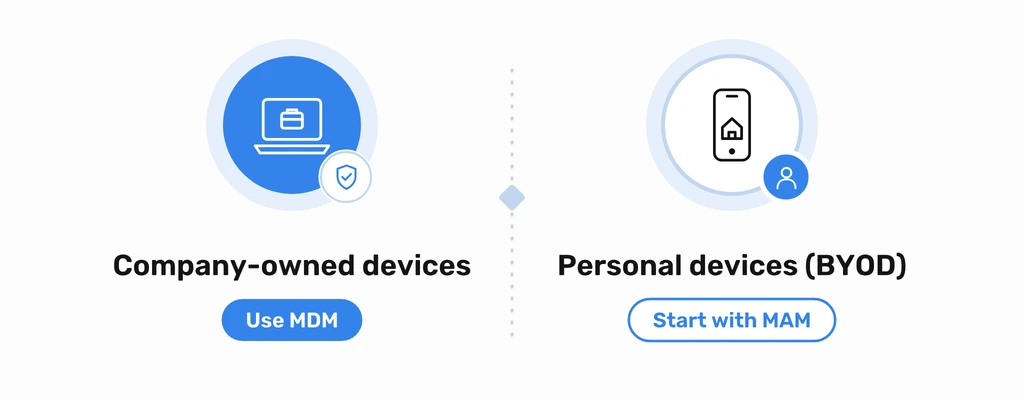
Company-owned devices: use MDM. The organization owns the hardware, so it can manage the full device, deploy apps silently, and wipe it completely when it’s lost or retired.
Personal devices (BYOD): start with MAM. Many employees won’t enroll a personal phone. App protection policies secure work data without giving IT access to personal apps, messages, or photos.
Intune supports both models at the same time. A field supervisor might carry an enrolled company tablet and a personal phone protected only by app policies, with each device governed by the model that fits it.
App protection policies include a setting: “Sync policy managed app data with native apps or add-ins”, that controls data flow. When blocked, Outlook cannot export mailbox contacts to the native address book or sync calendar entries with native apps. Microsoft’s own Zero Trust guidance lists lost contact and calendar sync as an expected side effect.
From a security standpoint, this makes sense: customer phone numbers stay inside the managed app. The trade-off appears the first time a client calls. Caller ID can’t match the number to a name, so the call shows up as unknown.
Field teams then start saving contacts manually, which puts company data back into personal storage, outside of any policy. A control meant to reduce data exposure ends up creating unmanaged copies.
There’s no single fix, but a few approaches reduce the risk without giving up control:
MDM and MAM control where corporate data lives on a phone, but they don’t control who can send email in your company’s name. A secure mobile direct communication strategy also needs to account for how employees access corporate information and communicate with clients across personal and company-owned devices. A former employee’s leftover contact list is valuable to attackers, and spoofed messages that appear to come from your domain can target those same clients and partners.
That’s why device management works best alongside domain-level email authentication.
SPF, DKIM, and DMARC let you declare which senders are authorized to use your domain and ask receiving mail servers to quarantine or reject messages that fail authentication. DMARC policy is a request: receivers may accept mail that fails even under p=reject, and the final handling is always the receiver’s local policy.
SPF and DKIM on their own do not protect the visible From domain. SPF authorizes hosts for the MAIL FROM/HELO identities only, and DKIM signing domain is not required to match the From address. Only DMARC alignment ties them to the Author Domain. Note that DMARC covers exact-domain spoofing only.
MDM gives IT full control over company-owned hardware. MAM protects work data on devices the company doesn’t own. Most organizations end up running both, with a clear rule for each device type and a plan for the data that falls in between, such as contacts and calendar entries.
Had the sales manager’s phone been assigned the right management model from the start, IT could have removed corporate data in minutes, left her personal content untouched, and kept unmanaged copies of client contacts from ever existing.
Protecting company data on mobile devices is one layer of security. Protecting your domain from impersonation is another. Sign up for a free DMARC trial with PowerDMARC to stop attackers from sending email in your name.