What Is a PTR Record and Why It Matters

by
Last Updated: 7 min read

by
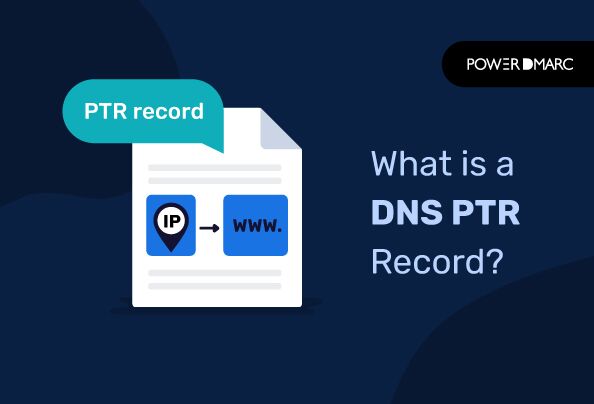
Last Updated: So, what is a PTR record? A PTR record, short for Pointer record, is a DNS record type used to map an IP address back to a domain name. It is essentially the reverse of an A record, allowing systems to identify which hostname is associated with a specific IP address.
PTR records play a central role in reverse DNS lookups, which are commonly used to verify servers, validate email senders, and support anti-spam checks. When a receiving server performs a reverse DNS lookup, it uses the PTR record to confirm that an IP address resolves to a legitimate hostname. This verification helps establish trust, particularly in email delivery, where missing or incorrect PTR records can lead to messages being flagged or rejected.
DNS PTR records, more commonly referred to as pointer records, help map an IP address to a hostname by telling an IP client the name of the system assigned to it. The DNS system maintains these records, which are used in several ways, including to help identify hosts and services on the Internet, as well as to validate email addresses.
PTR records are used in two main ways:
A classic PTR record example is as follows:
<name> <ttl> <class> <type> <rdata>
192.1.06.427 14400 <network class> PTR example.com
These records are used in reverse DNS lookups to determine if a host is communicating with another host on behalf of a sender. These records can be very useful in anti-spam, troubleshooting email delivery issues, email server validation, and validating outgoing mail.
The following are the main uses of PTR records.
Validate incoming mails: They can be used by email servers to validate incoming mail and determine whether or not it should be delivered. This is particularly useful if your company has multiple servers and you need to know which emails should go to which servers.
Validate outgoing mails: Outgoing mail systems use these records to validate outgoing emails before they’re sent off—if you’re running an email marketing campaign, this will help ensure that only valid email addresses are being sent out and not spam messages.
Anti-spam: They are used in reverse DNS lookups, which are commonly used by anti-spam providers to help identify spamming email addresses. In particular, a PTR record will return the IP address of the server that the domain name resolves to. This can be useful for anti-spam providers to help them determine whether an email address is legitimate or not.
When you perform a PTR Record Lookup, you will be able to check whether a domain has valid PTR record settings in place or not.
You can check your record via PowerDMARC’s free online PTR Record Lookup Tool:
You can also check your PTR record via the command line feature in Windows or macOS.
For Windows users, enter nslookup IP_ADDRESS in the command box prompt.
Alternatively, type dig -x IP_ADDRESS in the Mac terminal command box.
PTR records are DNS records that help in mapping an IP address to a hostname. They can be added, modified, and deleted by adjusting DNS settings on a server’s dashboard.
➜ Log in to the DNS Portal.
➜ Navigate to the IP settings page.
➜ Select the subnet whose PTR records you want to manage.
➜ Go to the Reverse DNS records for that subnet.
➜ Now add a PTR record by creating one by clicking on Add Record at the top of the page.
➜ Some hosts also allow bulk creation of PTR records, which allows you to create hundreds of entries at once by uploading them in JSON format.
➜ You will then see an empty form where you need to enter: IP Address (e.g 8.8.8.8), Content (e.g www), and TTL (300).
➜ After that click Save.
➜ You can remove the record by visiting the IP address management page and clicking on “delete,” which will remove the PTR record associated with that IP address.
The propagation time depends on the TTL setting of your DNS. The TTL is the time to live of a DNS record, and it represents how long the server will keep a record in its cache before removing it from memory.
For example, in this record: 3600 seconds represents the TTL (time to live) of 1 hour. So if a record is changed and then saved, it will take an hour for the update to appear from when the change was made.
| PTR Record | MX Record | A Record | |
| Purpose | provides domain name associated with an IP address | provides the mail server for a domain | provides IP address associated with a domain name |
| Owner Field | specifies the domain name for doing a reverse lookup | specifies the domain name that users address mail to | resolves a hostname to IP addresses |
| RDATA Field | specifies the fully qualified domain name | contains two fields:
i). a ranking number that determines which mail servers will be used when more than one is available
ii). a fully qualified domain name of the mail server itself | specifies which IP address is associated with a certain domain name under the IPv4 RFC 1035 |
PTR record issues are a surprisingly common reason emails fail to get delivered or trusted. Catching and fixing them early keeps reverse DNS resolution working the way it should—and makes everyday email communication a lot smoother and more reliable.
-No PTR record
When an IP address does not have a PTR record, reverse DNS lookups fail. Many mail servers treat this as a red flag and may reject or downgrade messages. The solution is to create a PTR record for the sending IP through your hosting provider or IP owner.
-Incorrect or mismatched PTR record
A PTR record that points to the wrong hostname or does not match the forward DNS (A record) can trigger trust issues. Ensure the PTR hostname resolves back to the same IP address to maintain proper forward-confirmed reverse DNS (FCrDNS).
-Email servers rejecting messages due to missing PTR
Some receiving mail servers automatically block or filter emails sent from IPs without valid PTR records. To resolve this, configure a correct PTR record and allow time for DNS propagation before retesting email delivery.
Proper PTR configuration helps avoid unnecessary delivery issues and supports better email trust across receiving systems.
DNS PTR records are a critical component of email security. If you’re using a mail provider that doesn’t provide them, you’re missing out on the chance to verify the authenticity of incoming messages and confirm that your outgoing emails aren’t being spoofed.
PowerDMARC will help you configure complete DNS records including SPF, DKIM, and DMARC records along with protocol management and monitoring services. This way, you’ll be able to enhance your company’s security and ensure that all incoming and outgoing emails are legitimate, while also making sure they’re not being blocked by spam filters.
PTR records are not technically mandatory, but most receiving mail servers expect them. Mail servers without valid PTR records are more likely to have emails flagged as spam or rejected, especially for outbound email.
PTR record propagation depends on the TTL value set by the DNS provider. In most cases, changes take anywhere from a few minutes to several hours, though it can take up to 48 hours.
No. Each IP address can have only one PTR record. While multiple domain names can point to the same IP using A records, reverse DNS allows only a single hostname per IP.


 What Is a CAA Record? DNS Security Guide