Microsoft Error Codes Explained: Types, Fixes, and Troubleshooting Guide

by
Last Updated:
7 min read

by
Last Updated:
Key Takeaways
Microsoft error codes are diagnostic signals that indicate a specific failure within Windows, Microsoft applications, or cloud services like Azure and Microsoft 365. These codes allow IT professionals and support teams to identify problems quickly and accurately. Whether it’s a missing system file or a failed cloud login, each code directly points to the issue.
While many codes are widely documented, the exact meaning often depends on the software or platform in use. Microsoft error codes support efficient troubleshooting, help reduce downtime, and are now supported by AI-driven tools like Microsoft Copilot to improve the speed and accuracy of solutions.
Here are some common Microsoft error codes.
System error codes are pretty common on a Windows PC. You’ll often find them in the following format: 0x8007XXXX. Here, the characters after the 7 point to a standard Windows error.
0x80070002 means the system cannot find the specified file. This classic error often points to missing or corrupted files needed by Windows Update or another application.
This error often indicates an access/permissions problem. It can signal that your user account may not have the necessary rights to access a file, registry key, or service. The 0x80070005 error is pretty common during software installation, Office activation, or Windows updates.
If you see the error code 0x80072EFD, it means a connection with the server could not be established. This may be because of a network connectivity problem that doesn’t let the PC reach Microsoft’s servers for Windows Update or the Microsoft Store.
When you interact with Microsoft’s web services and APIs, you will encounter standard HTTP status codes, often with additional context.
“429 Too Many Requests” means your application is sending too many requests within a given time frame.
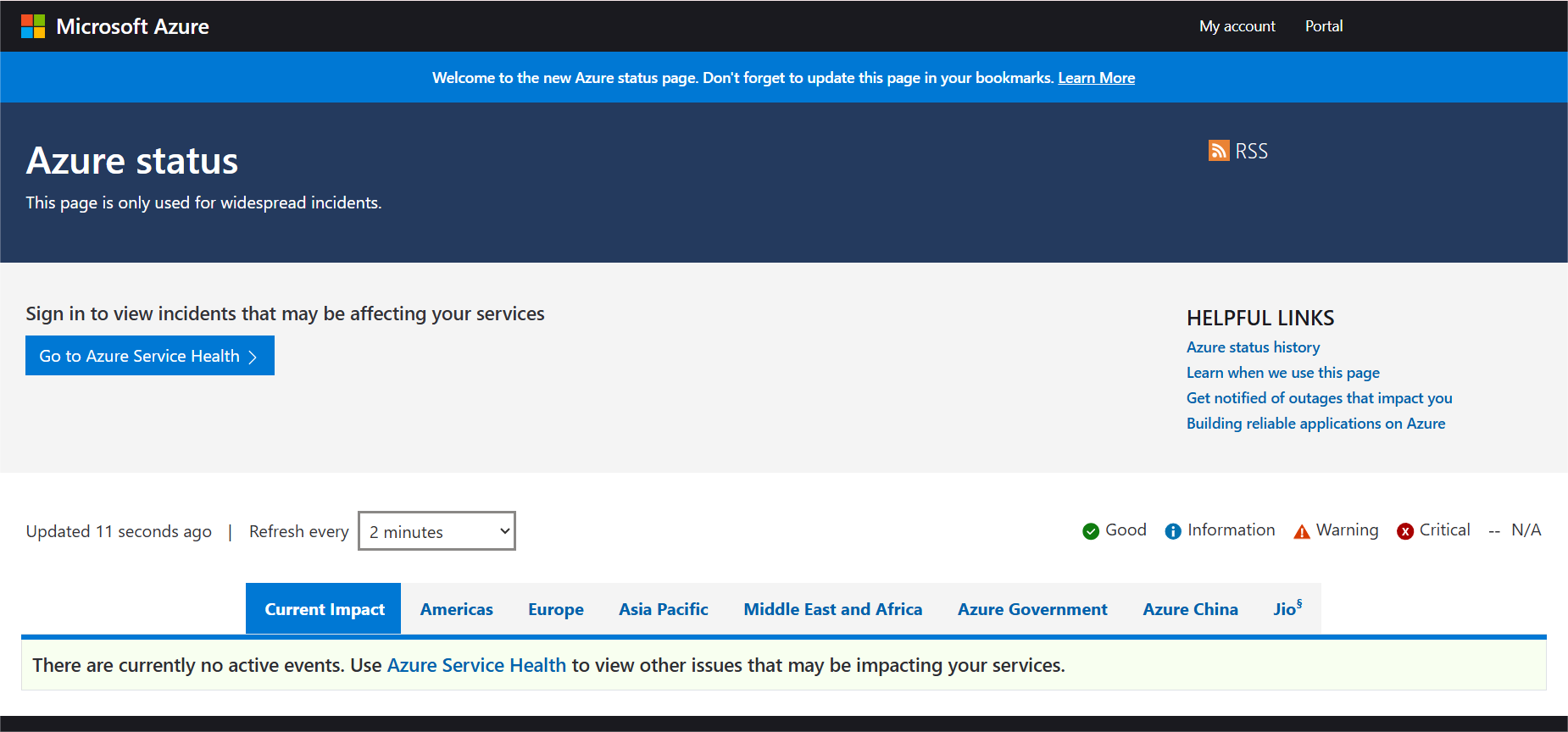
The Microsoft service you are trying to reach is temporarily down or can’t handle the request. You should check the Azure Status page for outages.
The 403 Forbidden is a common error in Azure Active Directory development. It means the application has been authenticated but does not have permission to access the requested resource. You just need to provide the correct API permissions in the Azure portal.
Windows updates are critical. However, they can sometimes fail with specific errors.
This means invalid data and can occur during a Windows 11 upgrade or update in case the system files are corrupt or the downloaded update package is incomplete.
An update is downloaded but cannot be installed. This often happens if a required service, like the Background Intelligent Transfer Service, is not running.
These are unique to pre-release versions of Windows. Windows Insider build errors often require specific workarounds that are detailed in the Windows Insider Blog.
Microsoft’s cloud platform has its own set of error codes that are related to virtual machines, authentication, and AI services.
This error can occur when you are trying to reset a password or configure a VM extension on an Azure Virtual Machine where the VM agent is unresponsive or not installed.
The user account is locked. This Azure AD error means the user has made too many failed sign-in attempts. In this case, the account must be unlocked by an administrator.
Errors in these services generally have to do with API key issues, endpoint misconfigurations, or exceeding token limits for a specific model.
Microsoft 365 also has its unique error codes, be they related to activation, syncing, and many things in between.
The “0x8007007E” error means the specified module could not be found. This can stop Office applications from opening and usually points to a corrupted installation. You can fix this issue by a repair or reinstall.
This is a well-known OneDrive error code. 0x8004de40 means it cannot connect to the cloud. You can think of it as a desktop equivalent of a network or authentication problem.
Your first 15 days are on us
Start Free TrialNow that you know specific error codes, it’s time to learn how to fix them.
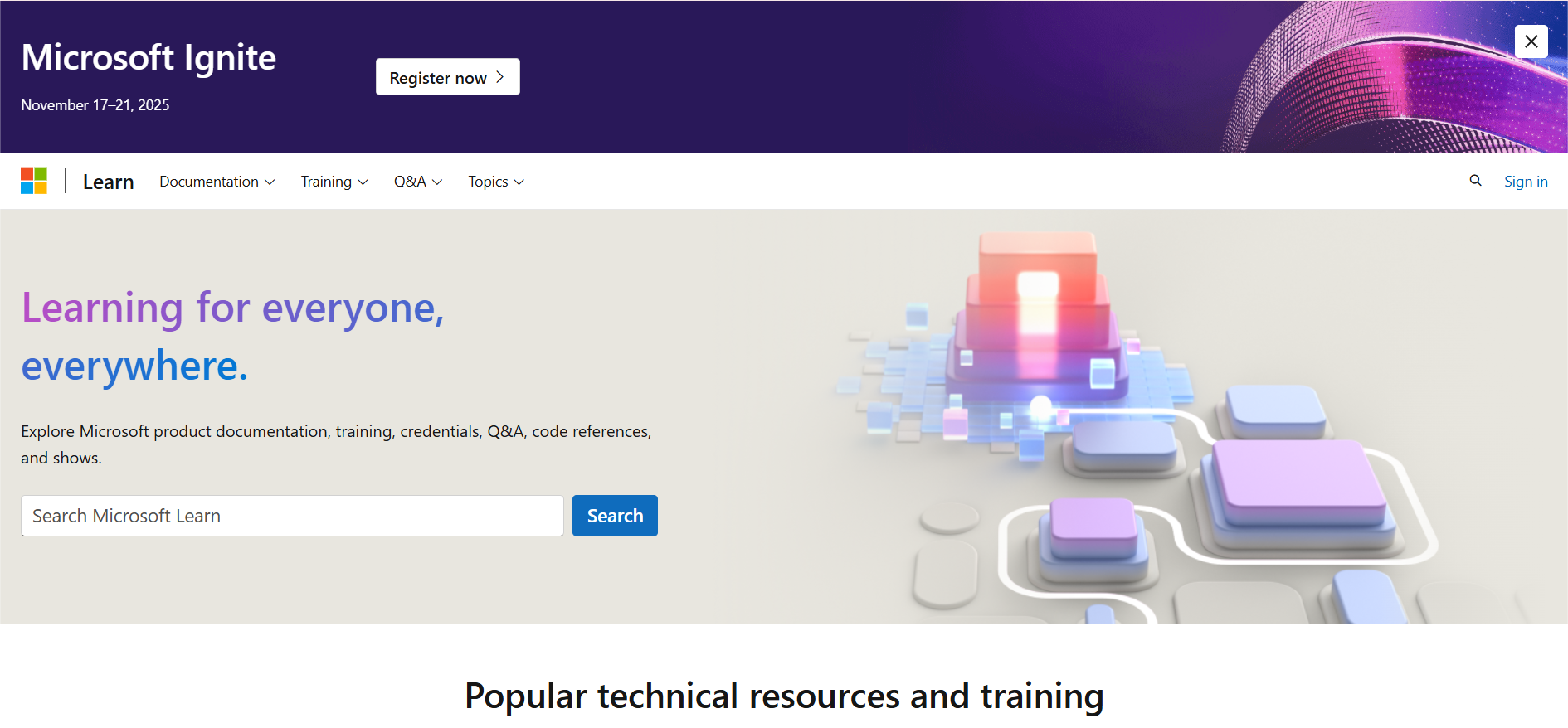
Microsoft Learn is the primary and most authoritative source. It has quite extensive documentation, troubleshooting guides, and community Q&As for nearly every Microsoft product. This means you can find answers to most of your questions and problems through this platform.
 WinDbg & Windows Error Lookup Tool
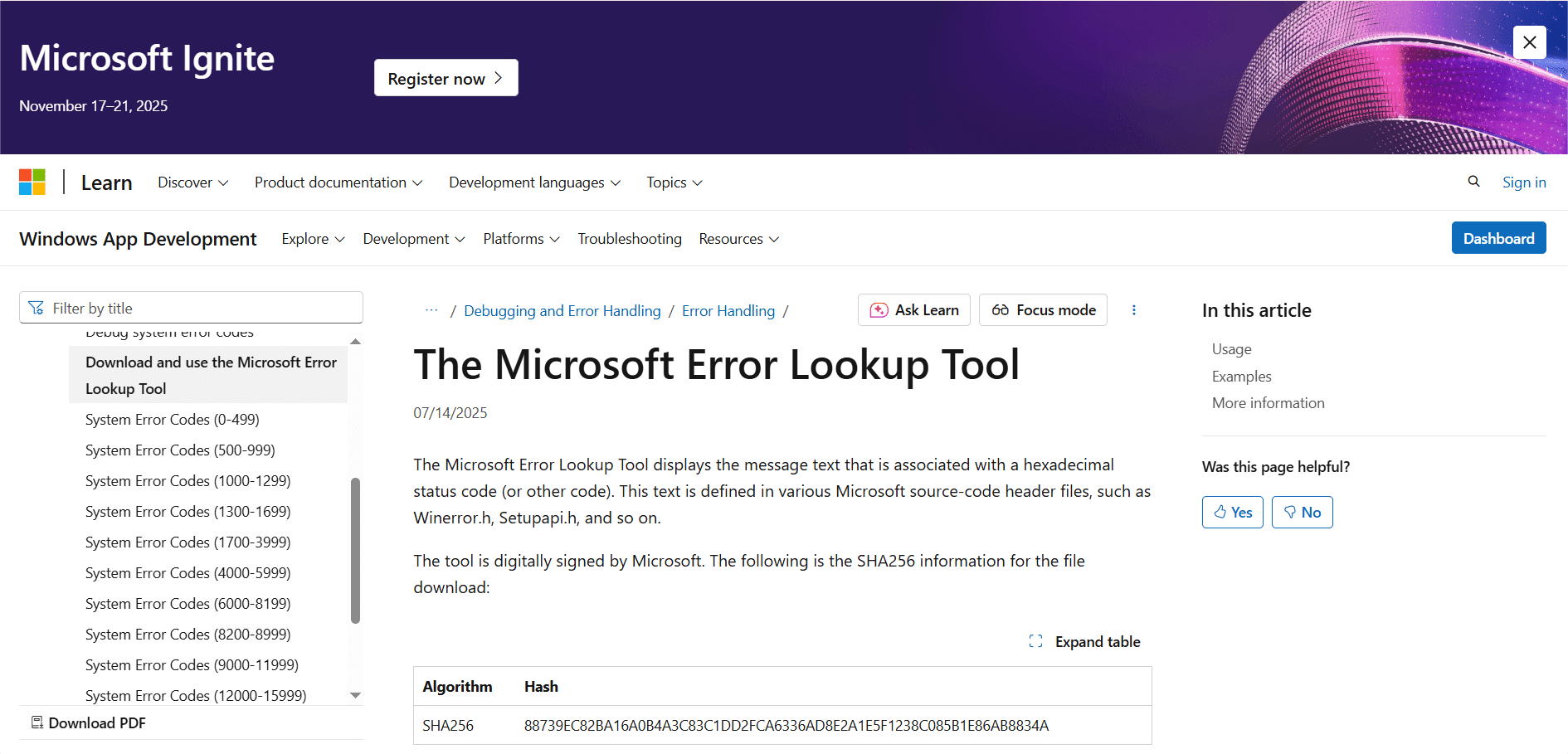
WinDbg & Windows Error Lookup tools are mostly used by developers and advanced IT pros. They can help translate a machine-language error code into a human-readable message. For example, the Error Lookup Tool in Visual Studio or the Windows SDK can tell you that $0x80070005$ means E_ACCESSDENIED, all in a matter of seconds.
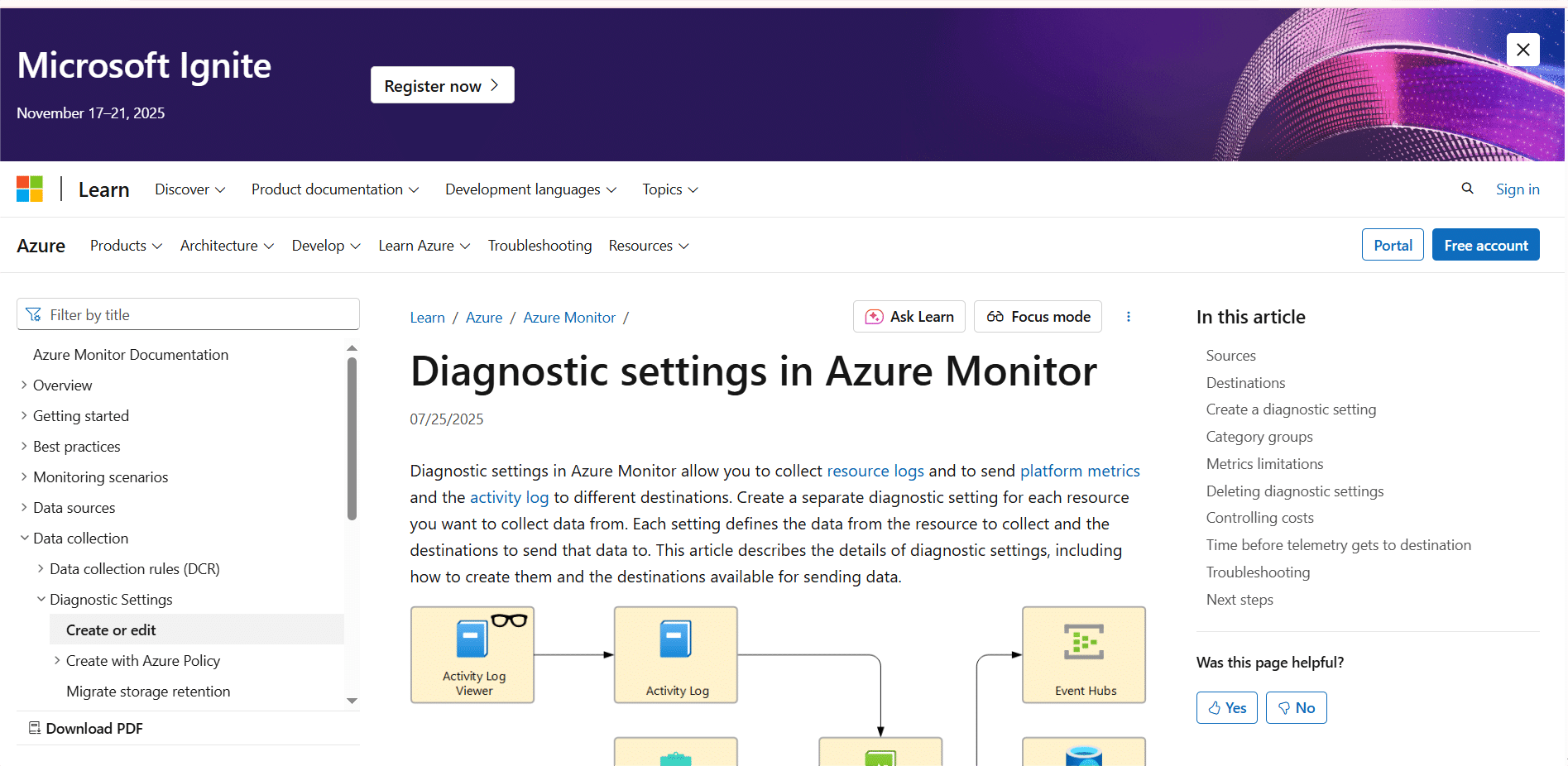
Azure is a platform where you can query activity logs and use Application Insights within Log Analytics to investigate errors. It’s great for debugging cloud application failures and is a common go-to for specialists.
This is built directly into Windows and can log significant events, including errors.
Pro Tip: Filter the Windows Logs > System and Application logs by “Error” and “Critical.” This will enable you to quickly find relevant entries. If you need more details, see our guide on how to use Event Viewer in Windows 11.
Microsoft Copilot (in Windows, Azure, or Microsoft 365) can now explain error codes. You can ask it any question, such as “What does error code 0x80070005 mean in Windows Update?” The Microsoft Copilot program will provide you with quick diagnoses and solution steps.
You can follow the steps below to fix Microsoft errors.
First, try to note the full error code and when/how it appeared. Is it in a pop-up window? Or is it an event log? Or maybe an application interface? The context in which it appears is really important.
Then, use the code to search on Microsoft Learn or the Microsoft Support knowledge base. These are some of the most trusted sources out there.
Sometimes, bugs get fixed in updates. As of 2024, all cumulative updates for Windows 11 and server patches for Azure are released regularly. Always make sure your system is up to date.
Windows comes with built-in troubleshooters for common problems like Windows Update, Network and Internet, and Printer issues. In Azure, you should use the Diagnose and Solve Problems blade.
Sometimes, for some of the update and connectivity issues, issues can get solved as you restart key services. Services that can be effective to reset include Windows Update (wuauserv), Background Intelligent Transfer Service (BITS), and the OneDrive desktop client.
What if you have exhausted all of the options above? If you’re an enterprise customer, you should open a support ticket through your service portal. If you’re a consumer, you should use the Get Help app in Windows.
We talked about how to fix Microsoft errors, but how to prevent them in the first place?
What are some common Microsoft error codes?
Common Microsoft error codes include system error Codes, HTTP & API status codes, Windows update & Windows 11 errors, Azure & cloud errors, Microsoft 365 & Office errors.
How can I find out what a Microsoft error code means?
You can use tools like Microsoft Learn and WinDbg & Windows Error Lookup Tool. You can also leverage Azure Diagnostics & Log Analytics tools and AI-powered Copilot to find out the meaning of Microsoft errors.
What is the primary and most reliable source to look up Microsoft error codes?
Microsoft Learn is the primary and most authoritative source.
How can I troubleshoot Microsoft error codes?
First, identify the code and search Microsoft’s official documents to find out what it means. Check for recent updates/patches, use troubleshooters, and reset the service.
How can I prevent Microsoft errors?
Check firewall rules and use Azure Monitor and Application Insights to monitor your cloud resources. You can also benefit from the Microsoft Support and Recovery Assistant tool to fix any minor issues before they become major ones.
We all make errors, and so does Microsoft. Quite often, a Microsoft error stems from our own oversight or lack of knowledge. But the good news is that Microsoft errors can easily be fixed with the right strategy and tools.
Troubleshooting tools include Microsoft Learn, the WinDbg & Windows Error Lookup tool, Azure Diagnostics & Log Analytics tools, AI-powered Copilot, etc.
But don’t wait until there is a need for troubleshooting. Always try to prevent the problem first. Protect your domain against spoofing and ensure your messages are trusted within Microsoft 365.
Take control of your email security with a free trial from PowerDMARC today!








 Sendmarc Review: Features, User Experiences, Pros & Cons (2026)