FACTS DKIM, DMARC, and SPF Setup Guide

by
Last Updated:
5 min read


by
Last Updated:
Key Takeaways
If your school or educational institution relies on FACTS to manage student information systems (SIS) and send critical communications to families, setting up proper domain authentication is an absolute must.
Configuring proper email authentication (SPF, DKIM, and DMARC) ensures your school’s domain is protected from spoofing and guarantees that your vital alerts, attendance notices, and billing messages safely land in parents’ inboxes rather than getting flagged as spam.
FACTS is a leading platform used by private schools for admissions, tuition management, and family communications.
When you accurately configure the necessary security protocols for FACTS, you will see immediate benefits:
Because FACTS handles custom domains on a strict account-by-account basis, you will need access to your DNS management console and assistance from FACTS support.
To pass DMARC, your emails must be signed with a DKIM key that matches your visible “From” address.
1. Log in to your FACTS SIS administrator portal.
2. Verify the exact sender email address used for your school communications (e.g., [email protected]).
3. Contact FACTS support and formally request that they enable custom DKIM signing for that specific domain.
4. FACTS support will generate and provide you with a unique DKIM selector, hostname, and target CNAME value.
Head over to your DNS provider (e.g., Cloudflare, GoDaddy, Namecheap) where your school’s domain is managed. Create a new CNAME record using the details provided by FACTS.
Once saved, reply to your FACTS support ticket and ask them to validate and activate the DKIM signing on their end.
You can check the record itself with PowerDMARC’s DKIM checker.

Because FACTS uses their own servers in the hidden Return-Path of your emails, SPF alignment will inherently fail during DMARC checks. This is normal, which is why your DKIM setup is so crucial.
However, if FACTS support provides you with a specific include mechanism or IP range for SPF, you should add it to your DNS.
If you have an existing SPF record (e.g., for Google Workspace or Microsoft 365), simply merge the FACTS include into it before the ~all tag:
Important: Do not create a second SPF TXT record. Having multiple SPF records will result in a PermError and cause your emails to fail authentication entirely.
If you’re managing several sending sources and getting close to the limit, our Hosted SPF solution is worth looking into, and you can check your current record with PowerDMARC’s SPF checker.

You shouldn’t fly blind when configuring a tool as important as FACTS. If you don’t have a DMARC record with reporting enabled, you won’t know if legitimate school emails are failing authentication or if bad actors are spoofing your domain.
Instead of guessing, use PowerDMARC’s free DMARC record generator to create a comprehensive record.
1. Go to PowerDMARC’s Free DMARC Record Generator tool.
2. For the Policy, select p=none (monitor-only mode). This ensures no emails get blocked initially, allowing you time to safely review your traffic before moving to enforcement.

If you are confused about what p=none is, here is a concise explanation of the DMARC policies:
Note: Jumping straight to p=reject risks blocking legitimate staff emails or other school software. Start with p=none to map out your mail flow safely.
1. Add your dedicated IT or security email address to the Reporting field to receive your DMARC aggregate reports (rua).
2. Log into your DNS management console and add a new record:
3. Save the record.
Step 1: Test a Live Email
Send a real FACTS email (like an attendance alert or test message) to a mailbox you control. Inspect the message headers and confirm that the Authentication-Results show a DKIM “Pass” and that the d= domain matches your school’s domain.
Step 2: Run a Final Check with PowerDMARC
To guarantee that your configuration is fully accurate and active, follow these verification steps:
Use PowerDMARC’s free DMARC Record Checker to instantly verify that your record is published correctly.
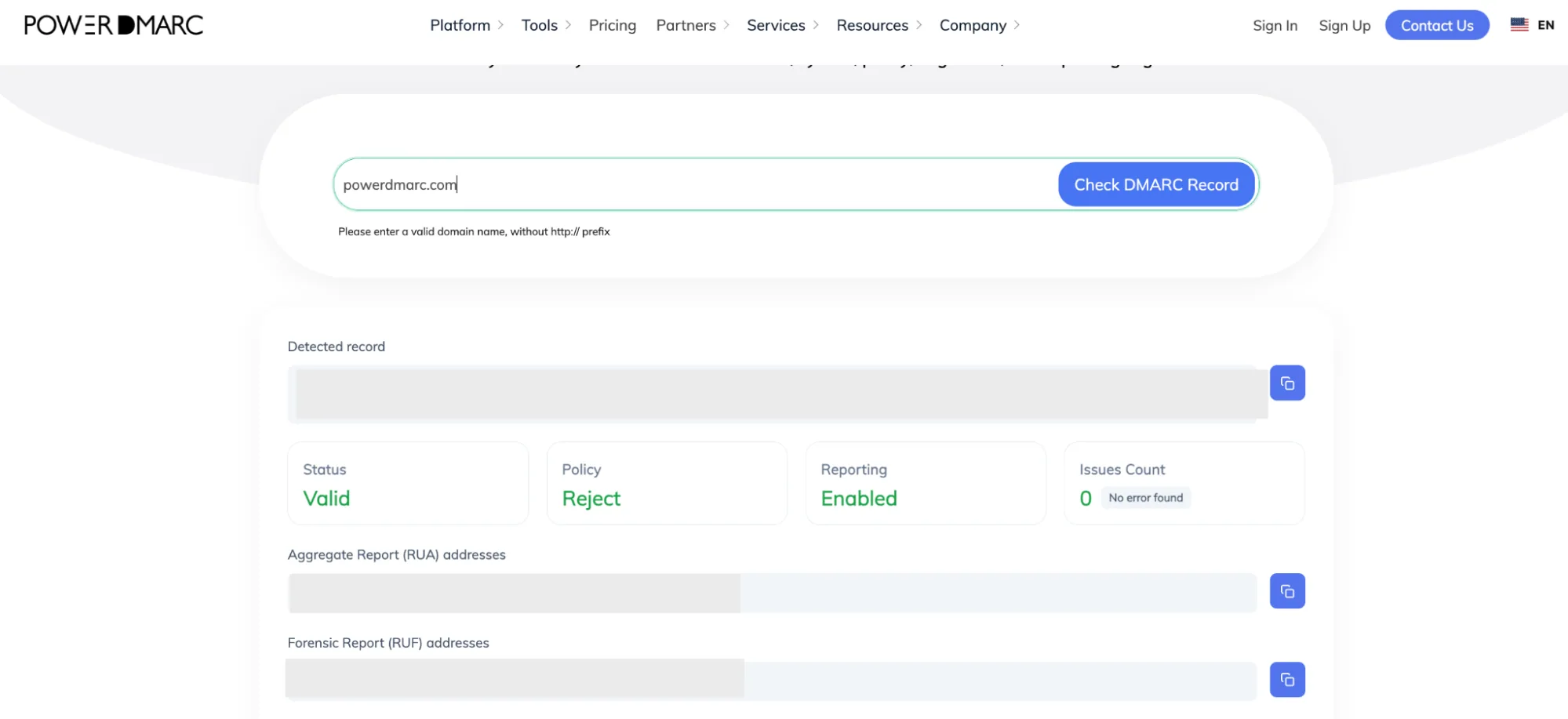
What to expect in your domain health results:
Securing a school’s email infrastructure is critical for keeping families informed and protected. If you want to take your email security further, move securely from p=none to DMARC enforcement without disrupting school operations, configure BIMI to display your school’s logo in the inbox, and monitor your automated reports seamlessly, the PowerDMARC team is here to help.
Get in touch with us or sign up for a demo with PowerDMARC to experience the power of safer email communications firsthand!








 Moloni DKIM, DMARC, and SPF Setup Guide