What Is a DNS Server? How It Works and Why It Matters

by
Last Updated:
9 min read

by
Last Updated:
Key Takeaways
Every time you type a website name and hit enter, something happens in the split-second before the page loads – a quiet lookup you never see, never think about, and rarely notice when it works. This is what a DNS server does.
In this article, we’ll cover how DNS servers work, the threats they face, and why they are a critical layer of internet security, especially when it comes to protecting email systems from spoofing and abuse.
A DNS server is what allows you to access websites using simple domain names instead of long numerical IP addresses. When you type a URL into your browser, a DNS server translates that name into the correct IP address so your request reaches the right destination.
It’s often described as the internet’s phonebook, but that comparison only explains part of the story. To be precise: DNS is the underlying system and protocol that makes domain resolution possible, while a DNS server is the infrastructure that runs it and responds to your queries.
DNS servers translate human-friendly domain names into machine-readable IP addresses. For example: You type: wikipedia.org, your DNS returns: 208.80.154.224, your browser then connects to that IP address to load the page
This translation happens automatically in the background every time you visit a website, send an email, or use an app.
Technically, you could, but it would be impractical because:
Every time you visit a website or send an email, a DNS lookup happens in the background. While it feels instant, there is a structured process behind it.
At a high level, the process looks like this:
Caching plays an important role here: If a DNS response is already stored, the process is much faster, but otherwise the full lookup chain is triggered. This system is efficient, but it also introduces points where things can go wrong or be manipulated.
You can check your domain’s DNS resolution in real time using our free DNS Lookup tool.
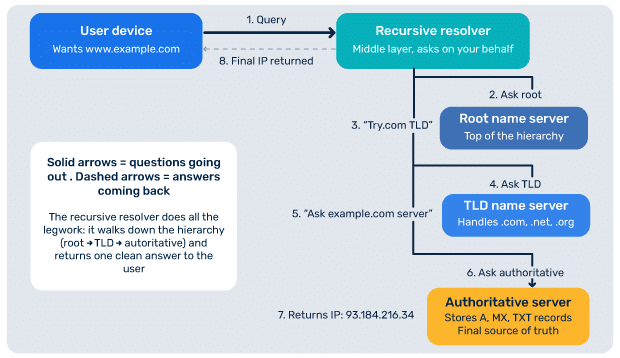
To understand DNS properly, it helps to know the roles different types of DNS servers play:
Recursive resolver
The recursive resolver is the first stop for your query. It acts as the middle layer between your device and the rest of the DNS system.
Root name servers
These servers sit at the top of the DNS hierarchy. They direct queries to the correct top-level domain servers.
TLD name servers
TLD name servers handle domain extensions like .com, .net, or .org and point queries toward the correct authoritative server.
Authoritative name servers
These provide the final answer. The authoritative name servers store the DNS records for a domain, including A records, MX records, and TXT records. For email and security, the authoritative server is especially important because this is where authentication records are stored.
DNS was not originally designed with strong security in mind. As a result, it has become a frequent target for attackers. Some of the most common DNS attacks include:
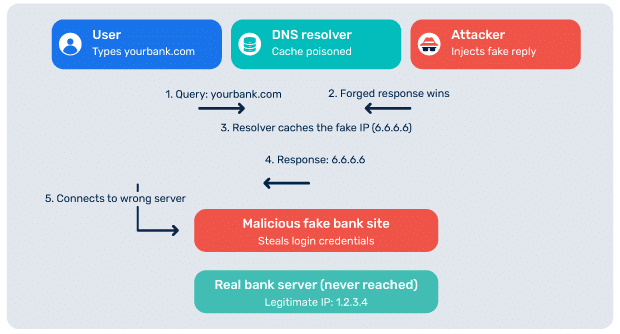
DNS spoofing is a security threat in which attackers inject false DNS information into a resolver’s cache. This can redirect users to malicious websites without their knowledge.
How it works:
When you type a URL like “yourbank.com” into your browser, your computer asks a DNS server to translate that name into an IP address (the server’s actual numerical address). DNS spoofing occurs when an attacker injects false information into the DNS lookup process. This causes the DNS server to return the IP address of a malicious server instead of the correct one. Your browser then connects to the attacker’s site, often without any obvious indication that something is wrong.
Risks of DNS spoofing:
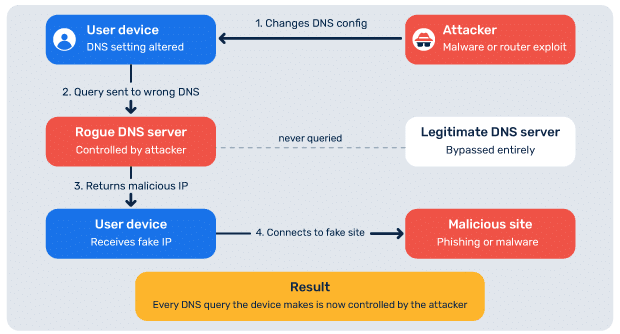
In DNS hijacking, attackers gain control of DNS settings or records. This allows them to reroute traffic, intercept communications, or manipulate services like email.
How it works:
There are several common ways DNS hijacking happens:
Risks of DNS hijacking:
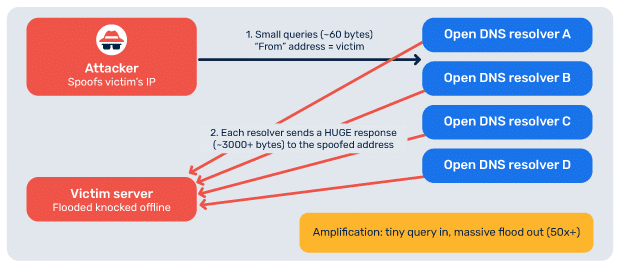
DNS amplification attacks are used in distributed denial-of-service attacks, where attackers overwhelm systems by exploiting DNS query responses.
How it works:
The attacker sends DNS queries to publicly accessible DNS resolvers, but spoofs the source IP address of those queries to make them appear to come from the victim’s IP. The DNS server, thinking the victim asked the question, sends its response to the victim instead of the attacker.
By choosing query types that produce large responses (like ANY queries or DNSSEC-related records), the attacker can turn a small request of around 60 bytes into a response of several thousand bytes. This amplification factor can be 50x or more, meaning an attacker with modest bandwidth can generate a flood many times larger directed at the victim.
Risks of DNS amplification attacks:
DNSSEC, or Domain Name System Security Extensions, adds a layer of verification to DNS responses. Instead of blindly trusting a DNS answer, DNSSEC ensures that the response is authentic and has not been altered in transit. It does this using cryptographic signatures. Here’s how it protects DNS integrity:
1. Prevents DNS spoofing: Attackers often try to inject fake DNS responses. With DNSSEC, the fake responses won’t have valid signatures, and therefore, your resolver discards them.
2. Ensures data hasn’t been modified: DNSSEC guarantees that the IP address you receive is exactly what the domain owner published, and no one altered it in transit.
3. Authenticates the source of data: DNSSEC confirms that the response really comes from the authoritative DNS server for that domain, and not from an attacker pretending to be one.
4. Creates a chain of trust: DNSSEC works through a hierarchy: Root zone → TLD (.com, .org) → domain, where each level validates the next using cryptographic keys. If any link fails, validation fails
You can check your DNSSEC configuration using our free DNSSEC checker tool.
In addition to DNSSEC, newer protocols like DNS over HTTPS (DoH) and DNS over TLS (DoT) help protect DNS queries from interception.
While these technologies improve security, they are not always universally implemented. This leaves gaps that attackers can still exploit.
DNS plays a central role in email authentication. Without DNS records (published on authoritative DNS servers), modern email security standards would not function.
Three key protocols rely entirely on DNS:
All of these are stored as DNS records on the authoritative name server. This creates an important dependency. If your DNS is misconfigured or compromised, your email authentication can break down completely.
For example, if an attacker gains access to your DNS:
Beyond these three core protocols, additional standards like Mail Transfer Agent Strict Transport Security (MTA-STS), Transport Layer Security Reporting (TLS-RPT), and Brand Indicators for Message Identification (BIMI) are also implemented through DNS records.
One of the most common DNS-related issues users face is the “DNS server not responding” error. The error means your device successfully sent a DNS query, but didn’t get a reply back from the DNS server within the expected time. Without that reply, your browser can’t translate a domain name like google.com into an IP address, so the connection fails and you can’t reach the site, even though your internet connection itself might be working at a basic level.
This issue can happen due to:
In most cases, you can resolve it with a few basic steps:
Unplug the power cable of your router and modem and wait for 30 seconds. Then plug the modem back in first, followed by the router cable, and wait another 1-2 mins before restarting your device.
Your device keeps a local cache of DNS lookups to speed things up. If that cache contains stale or corrupted entries, your device might keep trying to contact a server that’s no longer reachable.
On Windows 10 or 11:
On macOS:
Learn how to flush DNS in detail for different operating systems.
Your ISP’s DNS servers are often slower, less reliable, and sometimes filtered or logged. Public DNS providers like Cloudflare and Google run massive global networks specifically optimized for fast, accurate DNS resolution.
Recommended servers are Cloudflare: 1.1.1.1 (primary) and 1.0.0.1 (secondary), or Google: 8.8.8.8 (primary) and 8.8.4.4 (secondary).
Sometimes the adapter itself has bad settings, outdated drivers, or a corrupted protocol stack. Check your active connections, remove the connection, and reconnect back in to see if it helps resolve the issue.
Antivirus suites, firewalls, and Virtual Private Networks (VPNs) often include their own DNS filtering or interception layers. When these misbehave, they can silently block legitimate DNS responses.
Important note: If disabling one of these fixes the problem, the issue is in that software’s configuration, not the software itself. You shouldn’t leave security tools off; instead, reconfigure the offending tool (often by allowing your DNS server in its settings) or contact its support.
A reliable DNS server is the foundation of a secure email program. For organizations that rely on email, choosing the right DNS server is even more critical.
A weak DNS server setup can lead to email spoofing and phishing attacks, loss of domain trust, delivery failures, and reputation damage. Laying a secure DNS foundation, combined with properly configured SPF, DKIM, and DMARC, is essential for protecting both your users and your brand.
Audit your domain’s DNS records with a free Domain Analyzer tool to confirm your email authentication protocols are correctly configured.
What does a DNS server do?
A DNS server translates human-readable domain names into IP addresses so browsers can locate and load websites.
What is the difference between a DNS server and a DNS record?
A DNS server is the system that stores and responds to queries, while a DNS record is a specific entry (like an A or MX record) that defines how a domain should be resolved or handled.
What is the best DNS server to use?
The best DNS server depends on your needs, but popular, reliable options include Google Public DNS and Cloudflare for their speed, security, and global availability.









 Understanding Zero-Day Vulnerabilities: What They Are and How They Threaten...