How to Add an IP Address to Your SPF Record (Step-by-Step Guide)

by
Last Updated:
12 min read

by
Last Updated:
To add an IP to your SPF record, edit your domain’s existing SPF TXT record in DNS and insert an ip4: (or ip6:) mechanism before the all mechanism. For example:
v=spf1 ip4:192.0.2.1 include:_spf.google.com -all
Important: Do NOT create a second SPF record. You must edit your existing one and before adding a raw IP, check whether your sending service provides an include: value instead, which is usually the better long-term choice.
This guide walks you through the full process, including finding your current record, choosing between ip4 and include, editing your DNS across popular providers, validating the result, and avoiding the mistakes that silently break email for thousands of domains every year.
SPF (Sender Policy Framework) is a DNS TXT record that lists the IP addresses and services authorized to send email from your domain. If a server’s IP is not on the list, receiving mail servers can reject or flag the message.
Google began enforcing bulk sender authentication requirements in February 2024, requiring SPF or DKIM plus DMARC for anyone sending more than 5,000 messages per day.
As of November 2025, non-compliant emails face permanent rejections, not soft deferrals, but hard bounces. Yahoo enacted identical requirements on the same timeline. Microsoft followed in May 2025, rejecting unauthenticated bulk email outright with 550 errors.
Without a correct SPF record, your domain is exposed to spoofing and even your legitimate email may be rejected by Gmail, Yahoo, and Outlook. If your SPF record is broken, your email just stops arriving without any alerts. It silently fails on the receiving end, and you find out when a customer or colleague tells you they never got your message.
Before adding anything to your record, you need to understand what each part does. Here is the anatomy of a typical SPF record:
v=spf1 ip4:192.0.2.1 ip4:203.0.113.0/24 include:_spf.google.com -all
| Component | What it does |
|---|---|
| v=spf1 | Version tag. Required. Must be first. |
| ip4:192.0.2.1 | Authorizes a single IPv4 address. Does not consume a DNS lookup. |
| ip4:203.0.113.0/24 | Authorizes a CIDR range (256 IPs). Does not consume a DNS lookup. |
| ip6:2001:db8::1 | Authorizes an IPv6 address. Does not consume a DNS lookup. |
| include:_spf.google.com | Delegates to another domain’s SPF record. Consumes at least 1 DNS lookup. |
| a | Authorizes the IPs from the domain’s A record. Consumes 1 lookup. |
| mx | Authorizes the IPs from the domain’s MX servers. Consumes 1 lookup. |
| -all | Hardfail. Reject everything not listed above. |
| ~all | Softfail. Flag but do not reject unauthorized email. |
Here are three real-world examples covering different levels of complexity:
Simple (single mail server):
v=spf1 ip4:198.51.100.25 -all
Typical SMB (Microsoft 365 + one marketing tool):
v=spf1 include:spf.protection.outlook.com include:servers.mcsv.net -all
Complex enterprise (multiple services):
v=spf1 ip4:203.0.113.0/24 include:_spf.google.com include:spf.protection.outlook.com include:sendgrid.net include:spf.brevo.com -all
| Critical rule: A domain can have only ONE SPF record. If you already have one, you MUST edit it. Do not add a second TXT record starting with v=spf1. Two SPF records on the same domain will produce a PermError and break ALL email authentication. |
Need to build a record from scratch?
Use PowerDmarc’s free SPF record generator to create a syntactically correct record instantly.
Adding an IP address to your SPF record is one of the most direct ways to authorize a sending source. It’s typically required when you’re using a dedicated server, a transactional email system, or any infrastructure you control.
While the change itself is simple, accuracy matters because incorrect entries or formatting issues can affect authentication and deliverability. The steps below walk through the process of adding an IP address to your SPF record correctly, without disrupting your existing configuration.
Many domains already have an SPF record from a previous setup. If you create a new one without checking, you will end up with two and that breaks everything.
You can look up your current record in two ways.
Use PowerDMARC’s free SPF checker tool for an instant visual result or run a command-line query:
nslookup -type=TXT yourdomain.com
dig TXT yourdomain.com
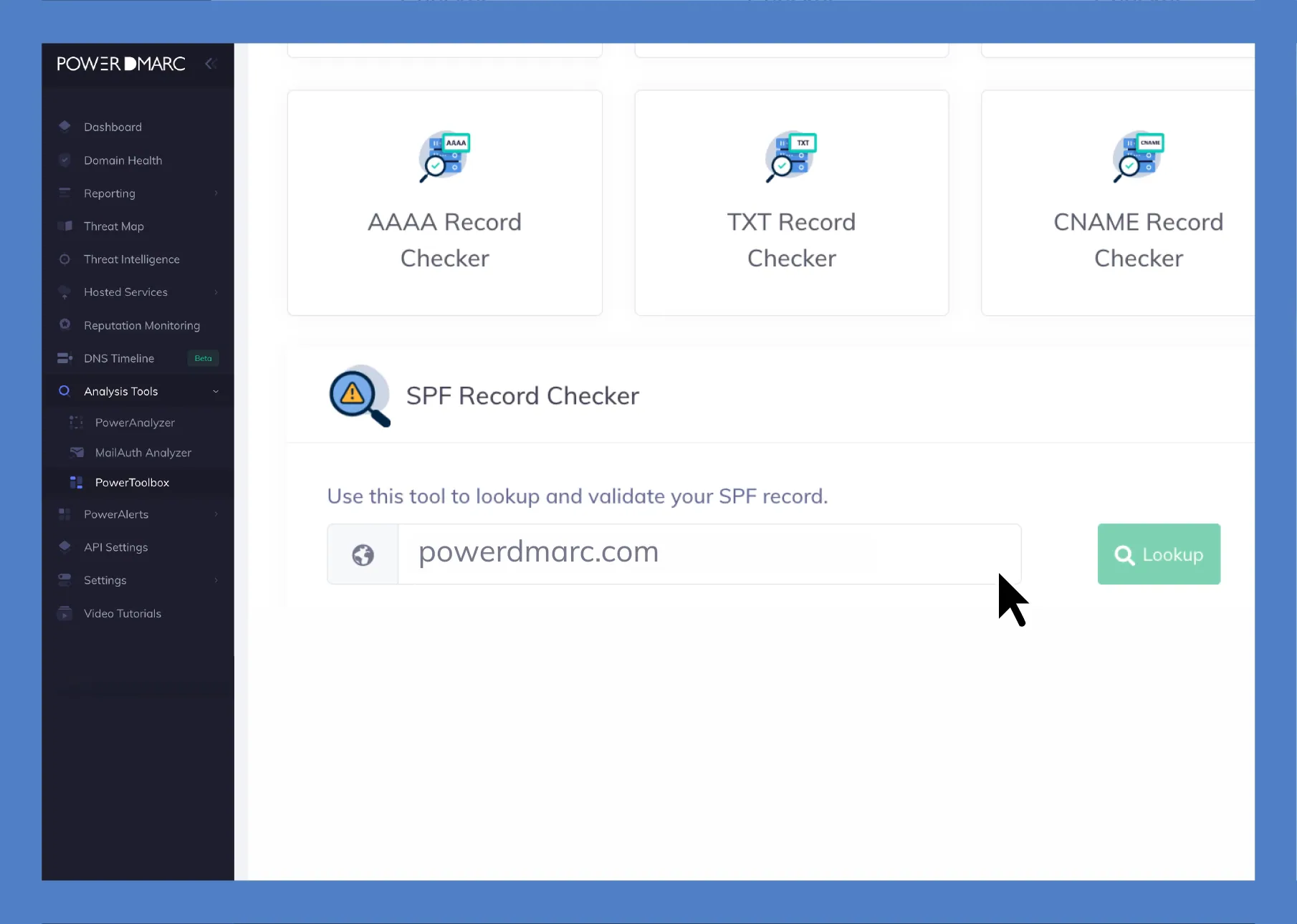
See how to instantly check your SPF record and identify configuration issues that could impact email deliverability
Look for a TXT record that starts with v=spf1. If you see one, that is your SPF record, and you will be editing it in Step 3. If you see two records both starting with v=spf1, you already have a problem, merge them into one before doing anything else.
There are two scenarios here, and the right choice depends on what you are authorizing:
Scenario A: You are adding a specific IP address. This applies when you run your own mail server on a static IP, or you have a dedicated sending IP you control. You need the exact IPv4 or IPv6 address of the server.
Scenario B: You are authorizing a third-party service. This applies to services like Mailchimp, SendGrid, HubSpot, Google Workspace, or Microsoft 365. In this case, you need the include: value from that service’s documentation, not their IP addresses.
Before you add a raw IP, read the section below on ip4 vs. include. For most third-party services, include: is the better long-term choice.
Log in to your DNS provider (your domain registrar or hosting provider), find the TXT records for your domain, and edit the existing SPF record. Add the new ip4: or include: mechanism BEFORE the all mechanism.
Here is how to do it on the most common providers:
| Pro tip: Lower your TTL to 300 seconds (5 minutes) BEFORE making SPF changes. This speeds up DNS propagation and lets you fix mistakes faster. Wait for the old TTL to expire first, then make the change. Reset TTL to normal after confirming the record works. |
A single misplaced space, missing colon, or duplicate record can silently break email for your entire domain. Validation takes 30 seconds and prevents hours of troubleshooting.
Run through this checklist after every SPF change:
For a full security audit beyond SPF, run your domain through the PowerDMARC domain analyzer. It checks SPF, DKIM, DMARC, MTA-STS, and BIMI in one pass.
Adding the IP is step one. Knowing whether it actually works and catching when it breaks later is step two.
DMARC aggregate reports are the primary way to get ongoing visibility into SPF pass/fail rates per sending source. Without monitoring, you are flying blind. Many administrators only discover a broken SPF record after customers start marking legitimate email as spam or an invoicing tool sends from an unauthorized IP for weeks without anyone noticing.
| Want ongoing visibility into every IP sending email from your domain?
PowerDMARC’s DMARC reporting dashboard shows SPF pass/fail rates per source across all your domains, in human-readable dashboards, not raw XML. Start your free 15-day trial → powerdmarc.com/free-dmarc-trial/ |
When to use ip4: (raw IP addresses):
The rule: use ip4: only when YOU control the IP and it will not change.
When to use include: (delegated SPF):
Cloud services rotate IP addresses regularly. If you hardcode their current IPs with ip4:, your SPF record goes stale when they migrate infrastructure and your email breaks with no warning.
The include: mechanism delegates to the service’s own dynamically maintained SPF record. When they update their IPs, your SPF automatically reflects the changes with zero maintenance on your end.
[Image: Decision tree flowchart — “Is this a server/IP you own and control?” → YES → Use ip4 / NO → “Does the service provide an include: value?” → YES → Use include (preferred) / NO → Use ip4 + set a quarterly review reminder]
[Alt text: Decision flowchart showing when to use ip4 vs include mechanism in SPF records]
For a deeper dive on include syntax and best practices, see the full SPF include guide.
This table eliminates the need to search for each service’s SPF documentation separately. Bookmark it for the next time marketing signs up for a new tool.
| Email Service | SPF Include Value | Notes |
|---|---|---|
| Google Workspace | include:_spf.google.com | Covers all Google Workspace sending |
| Microsoft 365 | include:spf.protection.outlook.com | Standard for all M365 tenants |
| Mailchimp | include:servers.mcsv.net | Standard Mailchimp include |
| SendGrid | include:sendgrid.net | Covers all SendGrid sending |
| Salesforce | include:_spf.salesforce.com | Covers Salesforce email sends |
| Zendesk | include:mail.zendesk.com | For Zendesk support email |
| Freshdesk | include:email.freshdesk.com | For Freshdesk support email |
| Amazon SES | include:amazonses.com | Covers SES sending |
| Brevo | include:spf.brevo.com | Updated from Sendinblue |
| Zoho Mail | include:zoho.com | Covers Zoho Mail |
| Postmark | include:spf.mtasv.net | For Postmark transactional email |
| Klaviyo | include:spf.klaviyo.com | For Klaviyo email marketing |
Table: Quick reference of SPF include values for popular email services. Always verify the current value in each service’s official documentation, providers occasionally update these.
Important: Each include: counts as at least one DNS lookup, and many third-party SPF records contain nested includes that add more. If you are using five or more services, you are likely approaching the 10-lookup limit. See the next section for how to handle this.
RFC 7208 caps SPF evaluation at 10 DNS-querying mechanisms. The mechanisms that count are: include, a, mx, redirect, and exists. The mechanisms that do NOT count are: ip4, ip6, and all. These are evaluated locally without a DNS query.
When your record exceeds 10 lookups, SPF returns a PermError. Many receiving servers treat a PermError as an SPF failure. Your email deliverability drops, and you get no notification that it happened.
There is also a lesser-known constraint: the 2-void-lookup limit. If more than two DNS queries return NXDOMAIN (domain not found) during SPF evaluation, SPF also fails.
Here are three ways to fix it, ranked by practicality:
Start with an audit. Remove include: statements for services you no longer use. Remove a and mx mechanisms if you do not send email from your domain’s a or mx record IPs. This is the fastest fix and often frees up 2–3 lookups immediately.
Resolve your include: mechanisms down to their underlying IP addresses and hardcode them as ip4: entries. This eliminates the DNS lookups those includes would have consumed.
This creates an ongoing maintenance burden. Email service providers change or add to their IP ranges without notifying you. When they do, your flattened record goes stale, and legitimate email starts failing. Manual SPF flattening is like mowing the lawn. It works, but you have to do it again every few weeks.
The modern approach uses SPF Macros (defined in RFC 7208 §7), which dynamically expand at evaluation time to keep your record under the lookup ceiling without manual IP maintenance.
Automated flattening tools handle this continuously, re-resolving provider IPs on a schedule and updating your published record.
| Hitting the 10-lookup limit?
PowerSPF uses SPF Macros to keep your record permanently under the lookup ceiling automatically. No manual flattening, no stale IPs, no maintenance. PowerDMARC also supports traditional SPF flattening for simpler setups. Start your free 15-day trial |
SPF checks the envelope sender (MAIL FROM) IP address against your authorized list. It works when email travels directly from sender to receiver but when email is forwarded, through mailing lists, auto-forwarding rules, shared mailboxes, or any relay, the sending IP changes. SPF breaks, because the forwarding server’s IP is not in your SPF record, and it should not be.
DKIM (DomainKeys Identified Mail) works differently. It attaches a cryptographic signature to the email body. That signature travels with the message regardless of which server relays it. DKIM survives forwarding but SPF does not.
DMARC (Domain-based Message Authentication, Reporting, and Conformance) ties them together. It requires only ONE of SPF or DKIM to pass and align with your From domain for the message to pass DMARC.
In practice, DKIM is the more reliable alignment mechanism because it is not affected by forwarding.
This is why having both matters:
If SPF is your only authentication mechanism, your domain is still vulnerable to impersonation on any forwarded email path and you are not fully compliant with 2026 inbox provider requirements.
What to do next:
| Ready to see your full email authentication picture?
PowerDMARC monitors DMARC, SPF, and DKIM across all your domains with clear dashboards showing exactly what is passing, failing, and why. |
If you own domains that are parked, inactive, or used only for websites. They still need SPF protection. Attackers actively spoof unused domains precisely because they are often left unprotected.
The fix is simple. Publish this SPF record:
v=spf1 -all
This tells receiving servers that no one is authorized to send email from this domain. Any message claiming to come from it should be rejected.
For maximum protection, also publish a DMARC record with a reject policy:
v=DMARC1; p=reject; rua=mailto:[email protected]
This combination closes the door on spoofing for every domain you own, whether it sends email or not.
SPF syntax errors are rampant, and the worst part is they fail silently. Here are the eight most common mistakes, what happens when you make them, and how to fix each one:
| Mistake | Impact | Fix |
|---|---|---|
| Multiple SPF records | SPF fails (PermError) | Merge into one SPF record |
| Missing v=spf1 | Record ignored | Start with v=spf1 |
| all placed early | Remaining rules ignored | Move all to the end |
| Over 10 DNS lookups | SPF fails | Remove unused includes or flatten SPF |
| Using +all | Anyone can spoof your domain | Use -all or ~all |
| Invalid IP formatting | SPF error | Verify IP syntax |
| Using ptr | Poor compatibility | Replace with ip4: or include: |
| Old server IPs still included | Security risk | Remove unused IPs regularly |
Table: The most common SPF record mistakes, their impact, and how to fix each one.
For a deeper look at troubleshooting SPF validation errors, see our guide on SPF validation errors and how to resolve them.
Adding an IP to your SPF record is a straightforward DNS edit but getting it right requires understanding the syntax, choosing between ip4: and include:, staying under the 10 DNS lookup limit, and validating the result after every change.
SPF is one layer of a complete email authentication stack. In 2026, with Google, Yahoo, and Microsoft all actively enforcing sender authentication mandates, SPF alone is not enough. DKIM and DMARC are equally essential for full protection and compliance.
As your organization adds more sending services, your SPF record will grow. Manual management does not scale and a single mistake can silently kill email delivery across your entire domain. Automated SPF management is not a luxury anymore. It is operational hygiene.
Stop managing SPF records manually. PowerDMARC gives you automated SPF flattening (PowerSPF), DMARC monitoring, DKIM management, and clear reporting across all your domains, in one platform. Start your free 15-day trial
No. RFC 7208 requires exactly one SPF TXT record per domain. If a domain has two records starting with v=spf1, receiving servers return a PermError and treat SPF as failed for every message. If you need to authorize additional sources, edit your existing record to add them, do not create a new one.
-all is a hard fail, it tells receiving servers to reject email from unauthorized IPs. ~all is a soft fail, it flags unauthorized email but does not mandate rejection. In practice, when DMARC is enforced with p=quarantine or p=reject, the difference is minimal because DMARC policy overrides the SPF qualifier. If you have DMARC at enforcement, either works. If you do not have DMARC yet, -all provides stronger protection.
There is no hard limit on the number of ip4: or ip6: mechanisms. These do not count toward the 10 DNS lookup limit. However, the total SPF record must fit within DNS TXT record size constraints (255 characters per string, with multiple strings concatenated up to approximately 4,096 characters). For large IP lists, use CIDR notation (e.g., ip4:192.0.2.0/24) to cover ranges efficiently.
It depends on your DNS record’s TTL (Time to Live). If your TTL is 3600 (1 hour), most resolvers will pick up the change within 1 hour. To speed things up: lower your TTL to 300 (5 minutes) before making changes, wait for the old TTL period to expire, then make your edit. This dramatically reduces propagation time.
The most reliable method is DMARC reporting. When you publish a DMARC record with an rua tag, receiving servers send daily aggregate reports listing every IP that attempted to send email from your domain, along with SPF and DKIM pass/fail results. Without DMARC, you are guessing. PowerDMARC processes these reports into clear, human-readable dashboards so you can see exactly who is sending from your domain.
No. Only mechanisms that require a DNS query count toward the limit: include, a, mx, redirect, and exists. The ip4, ip6, and all mechanisms are evaluated locally and do not consume any DNS lookups.









 What Are Hacktivist Attacks and How They Work